How to Convert HTML to APK for Free
You can turn HTML, CSS, and JavaScript into an Android app without rebuilding the project in Kotlin or Java. AppsGeyser packages your web content inside an Android app shell, lets you preview it, customize the icon and layout, and generate an Android package for testing.
The correct method depends on what you already have: a code snippet, a complete folder of web files, or a live website URL. This guide separates those three cases so you do not upload the wrong input or break your asset paths.
Quick answer: Use the HTML tab for a self-contained HTML page, the ZIP tab for a project with CSS, JavaScript, images or multiple pages, and the URL tab only when the project is already published online.
What HTML to APK Actually Means
HTML is not compiled directly into native Android screens. A typical HTML-to-APK workflow places your web experience inside an Android wrapper that displays the content through WebView. The result is an installable Android app, while the interface and much of the logic still come from your HTML, CSS, and JavaScript.
This approach is a good fit for calculators, guides, quizzes, portfolios, simple games, dashboards, prototypes, AI-generated web tools, and content apps. It is less suitable when the project requires intensive graphics, complex background services, advanced Bluetooth access, or deeply native Android behavior.
Choose the Right Input: HTML, ZIP, or URL
| Input | Best for | What to prepare |
|---|---|---|
| HTML | One page or a compact prototype | Self-contained HTML; inline CSS/JS or reliable external HTTPS assets |
| ZIP | A real multi-file project | index.html plus CSS, JS, images, fonts and other pages in the correct folder structure |
| URL | A project already hosted online | A public HTTPS URL that works well on mobile |
If you have a live site rather than source files, follow the guide to convert a website URL to APK.
Convert HTML Code to an Android App
Step 1. Open the Builder and Select HTML
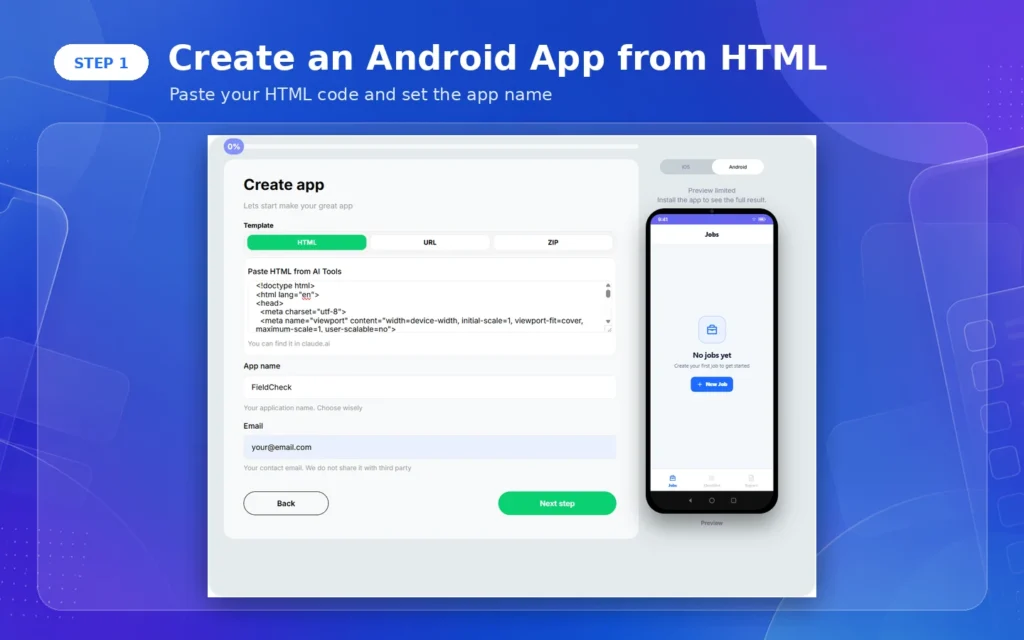
Open the current AppsGeyser app builder and choose the HTML tab. The 2026 interface places HTML, URL, and ZIP inputs in the same builder, so check that HTML is highlighted before pasting code.
Step 2. Paste and Preview the HTML
Paste the complete page into the HTML field, then use Preview. Test the mobile layout before continuing. If the preview is blank, confirm that the markup is complete and that scripts or assets are not blocked by mixed HTTP/HTTPS requests.
- Include a viewport tag so the page scales correctly on phones.
- Use responsive CSS instead of fixed desktop widths.
- Load external scripts, fonts, images, and stylesheets over HTTPS.
- Do not paste secrets, private API keys, passwords, or server credentials into client-side code.
Step 3. Add the App Name and Contact Email
Enter a clear app name and the email required by the builder. The app name shown on a device should identify the product; it should not be stuffed with search keywords. Google Play uses separate store-listing fields for discovery.
Step 4. Customize the Icon and Color Theme
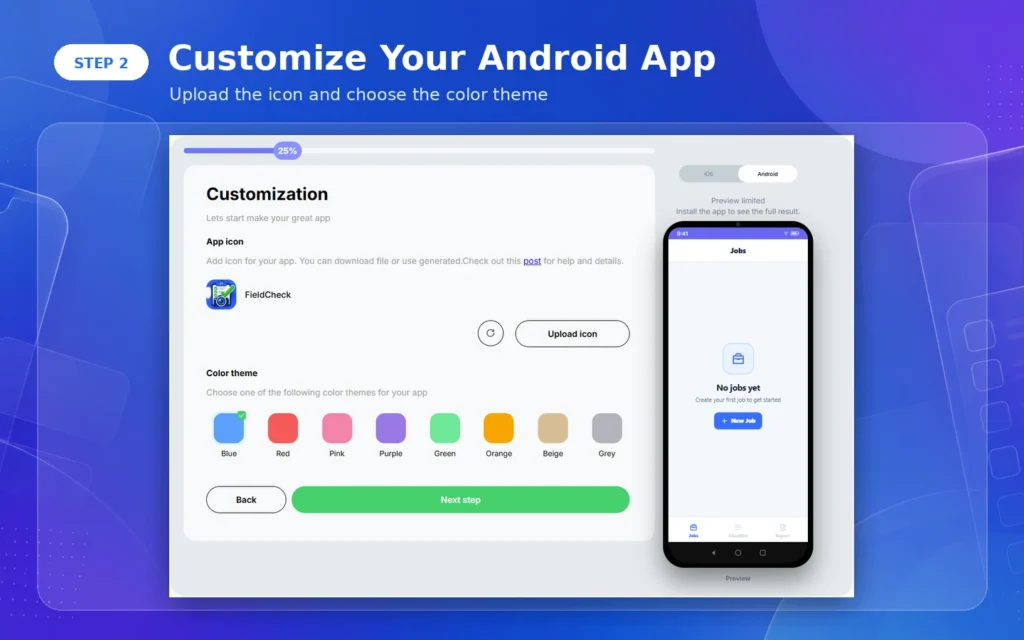
Upload a square, high-resolution icon or use a generated option, then choose a color theme that matches the interface. Check contrast at small sizes; thin text and detailed illustrations usually become unreadable in an app icon.
Step 5. Review Features and Generate the Package
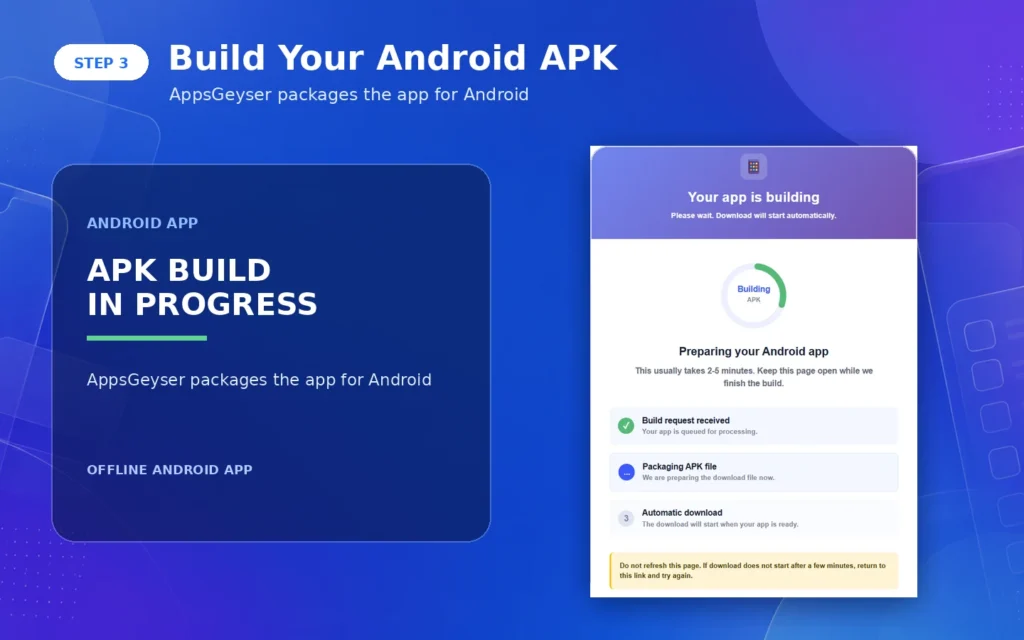
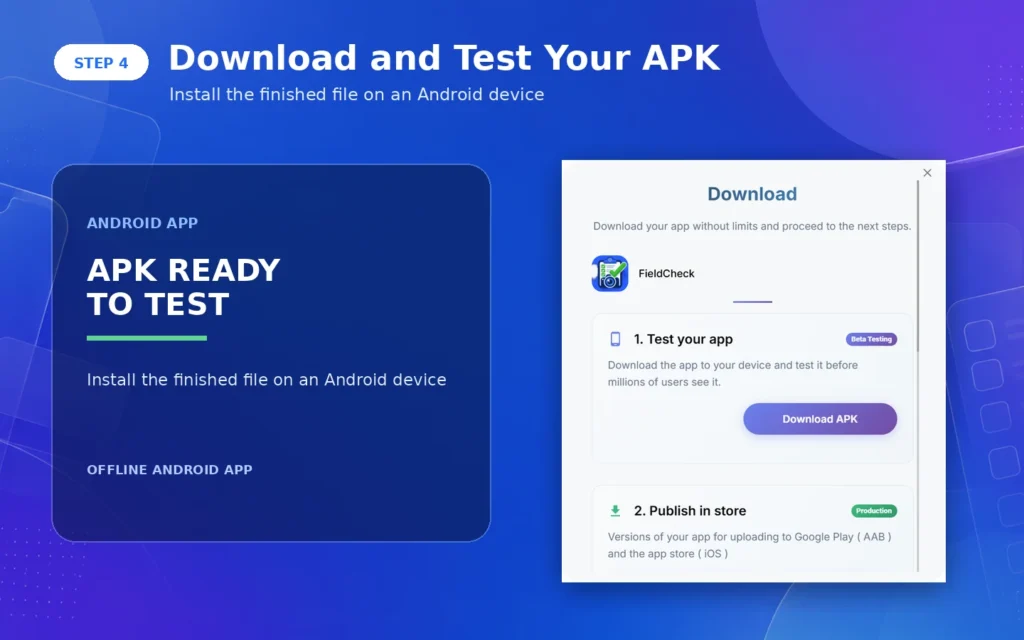
Review optional tabs and layout choices, continue to the final step, and generate the Android package. Use APK for direct installation and device testing. If you plan to publish a new app on Google Play, prepare an AAB because Google Play uses Android App Bundles for new app submissions.
Have a ZIP Project Instead?
If the project contains separate CSS, JavaScript, images, fonts, or multiple pages, use the dedicated ZIP workflow. Keep index.html at the archive root, preserve relative paths, and include every required asset.
Do not upload the parent folder as an extra nested level. For the complete preparation and troubleshooting process, see how to convert a ZIP web project into an app.
Convert an AI-Generated Web Project to APK
AI coding tools may give you a public URL, downloadable web files, or a repository. The output determines the conversion path; the brand of the AI tool does not. Export options change, so check the project’s current download and deployment controls before packaging it.
| What the AI tool gives you | Use this path | Check before conversion |
|---|---|---|
| Public HTTPS URL | Use URL input and the Website → APK guide | Mobile layout, authentication, public access and WebView behavior |
| ZIP with HTML/CSS/JS | Use the dedicated ZIP workflow | index.html at root, relative assets, no exposed API keys |
| GitHub repository | Build/export, then use static output or a deployed URL | Build command, environment variables, licenses and server dependencies |
| Copied HTML snippet | Use the HTML input | Complete markup, HTTPS assets, responsive CSS and client-side security |
This applies to projects created with tools such as Bolt, Base44, Lovable, Replit, v0, or Claude: use a public URL when the project is hosted, and use the ZIP route only when you have a complete static export. Never place private credentials in browser-side code.
HTML-to-APK Compatibility Checklist
- Relative file paths match capitalization exactly; Android environments can expose case errors hidden on a desktop.
- All core navigation works without browser-only extensions.
- Forms point to a reachable HTTPS backend and display clear success/error states.
- Login, cookies, local storage, and session behavior have been tested inside the app preview and on a device.
- External links, telephone links, email links, maps, downloads, audio, and video behave as intended.
- The app does not load arbitrary untrusted URLs through a privileged JavaScript interface.
Troubleshooting a Blank Screen or Broken Layout
The Preview Is Blank
Validate the HTML, remove unsupported browser extensions, and check the browser console in a normal mobile browser. In a ZIP project, confirm that index.html is at the archive root and that every required file was included.
CSS or Images Are Missing
Replace absolute computer paths such as C:\Projects\app\image.png with relative web paths such as assets/image.png. Check filename case, spaces, and URL encoding. If an asset is loaded remotely, use HTTPS and confirm that the server allows access.
JavaScript Works in Chrome but Not in the App
Look for code that depends on a desktop browser extension, blocked pop-ups, unsupported permissions, cross-origin requests, or a service that refuses WebView traffic. Test one failing function at a time and provide a graceful fallback when possible.
Testing Before You Share the APK
- Install the APK on at least one real phone, not only an emulator.
- Test portrait and landscape only if the app supports both orientations.
- Test Wi-Fi, mobile data, slow connection, airplane mode, and a resumed session after the app is closed.
- Check text size, tap targets, keyboard behavior, back navigation, forms, media, and downloads.
- Scan the app for unnecessary permissions and remove anything not required by the core function.
Google Play Requirements to Plan for in 2026
For new Google Play apps, use an AAB, prepare a privacy policy and Data safety disclosure where applicable, and make sure the app provides stable, useful functionality rather than a thin or broken wrapper. Starting 31 August 2026, standard new apps and updates submitted to Google Play must target Android 16 (API level 36) or higher. Requirements can change, so verify the current target API before upload.
New personal developer accounts may also need a closed test with at least 12 testers opted in continuously for 14 days before applying for production access. Read the complete guide on how to publish an app on Google Play.
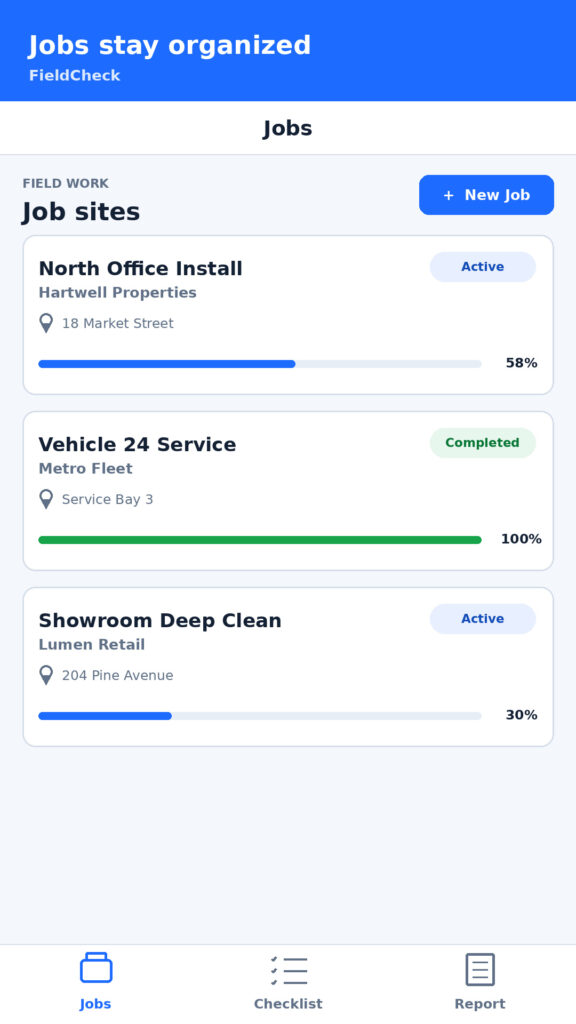
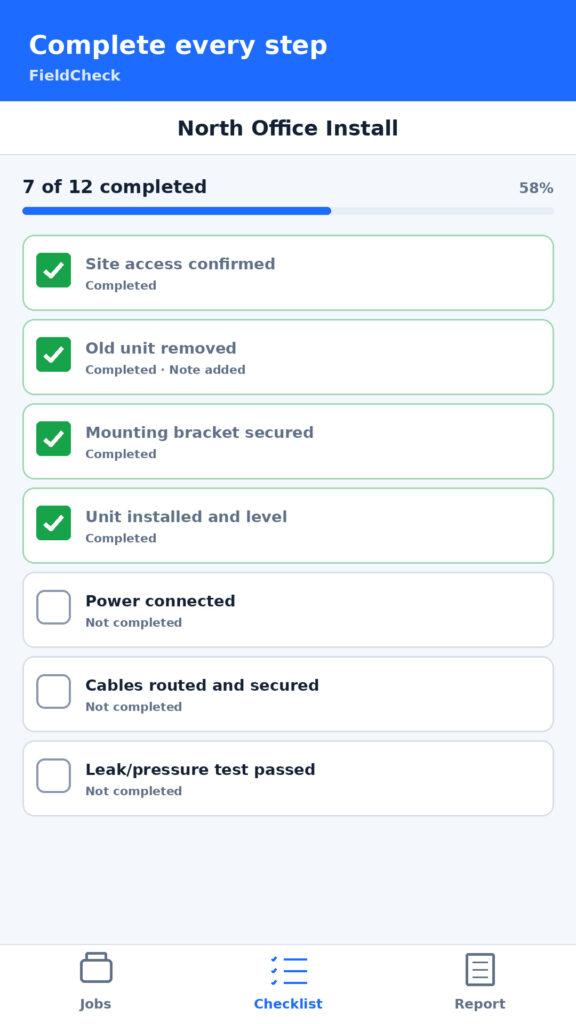
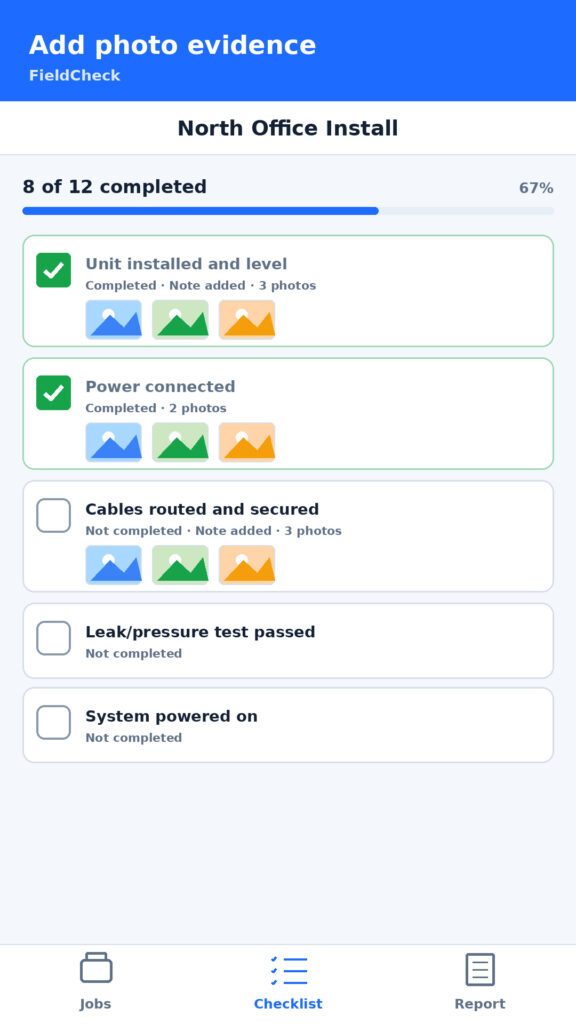
Example of an app: offline field checklist workflow – organize jobs, track task completion, and attach photo evidence.
Will My APK Still Install in 2027?
Android developer verification is changing how apps can be installed on certified Android devices. Google opened verification broadly in 2026 and announced phased enforcement beginning on 30 September 2026 for participating stores in Brazil, Indonesia, Singapore, and Thailand, with wider expansion planned for 2027 and beyond. Google also documents limited-distribution accounts, an advanced installation flow for unregistered apps, and continued ADB-based development.
The practical rule is to separate building from distribution: you can still generate and test an APK, but the account, app identity, signing, store, country, device, and installation method may affect how it can be distributed. Check the current official Android Developer Console verification guidance immediately before a public release because rollout dates and eligible flows can change.
FAQ: HTML to APK
Can I convert HTML, CSS, and JavaScript to APK?
Yes. Use the HTML input for a compact self-contained page or the ZIP input for a multi-file HTML/CSS/JavaScript project.
Can I convert AI-generated HTML into an Android app?
Yes, if you can export or copy the HTML, CSS, JavaScript, and assets. Review generated code for security, mobile responsiveness, licensing, broken dependencies, and exposed keys before packaging it.
What is the best free HTML to APK converter?
AppsGeyser is a simple no-code option for converting HTML code, a complete ZIP web project, or a public website URL into an Android app. Choose the input that matches your source, preview the mobile result, and test the generated APK on a real device.
Can I convert an APK back to HTML?
Not as a reliable reverse conversion. An APK contains packaged Android resources and compiled code, so it cannot be restored automatically to the original HTML project. Keep the source HTML, CSS, JavaScript, assets, and version history separately.
Can I update the content later?
A live URL app can reflect website changes without rebuilding the package. Bundled HTML or ZIP content normally requires a new app build when the packaged files change.
Can every file be converted to APK?
No. APK is an Android application package, not a universal file-conversion format. A PDF, image, or document needs an app interface capable of displaying that content.
Create Your HTML Android App
Choose HTML for a single page, ZIP for a complete web project, or URL for a live website. Preview the mobile experience, test the package on a real Android device, and check current Google Play requirements before publishing.
Prefer a visual walkthrough? Watch this step-by-step tutorial to see how HTML code is converted into a working Android APK using AppsGeyser.