How to Create an App with AI: Step-by-Step Tutorial
You can create a working mobile app with AI in about 10 minutes, without writing code yourself. In this tutorial we ask Claude to build a tic-tac-toe game, paste the code into AppsGeyser, and download a real Android app (APK). Every step below comes with a screenshot of what you will see. New to building apps with prompts? Start with vibe coding vs no-code app builders.
What you need
- An AI assistant that writes code: Claude, ChatGPT, Gemini or similar
- A free AppsGeyser account (you sign up right before downloading)
- An Android phone to test the app
The steps at a glance
Watch the Video Walkthrough
Prefer to watch? This short video shows the same process: creating an app with AI and turning it into an Android app with AppsGeyser.
How to Write a Good Prompt for an App
The prompt decides how good your app will be. A vague request gives you unpredictable code, while a specific one gives you an app that works on a phone the first time. A good app prompt covers four things:
- What you are building. Name the type of app and say it is for mobile phones, for example “a tic-tac-toe game for mobile phones”.
- The features. List what must be there: a 3×3 grid, two players taking turns, a score counter, a restart button.
- The format. Ask for a single HTML file with inline CSS and JavaScript. This is the format AppsGeyser converts most easily.
- Mobile requirements. Ask for large touch-friendly buttons and say the app should work offline, so it does not depend on outside services.
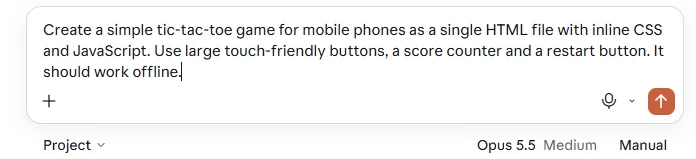
Here is the exact prompt we used:
Create a simple tic-tac-toe game for mobile phones as a single HTML file with inline CSS and JavaScript. Use large touch-friendly buttons, a score counter and a restart button. It should work offline.
Step 1
Generate the Code with AI
Open Claude and paste the prompt into the message box. ChatGPT, Gemini and other assistants work the same way.
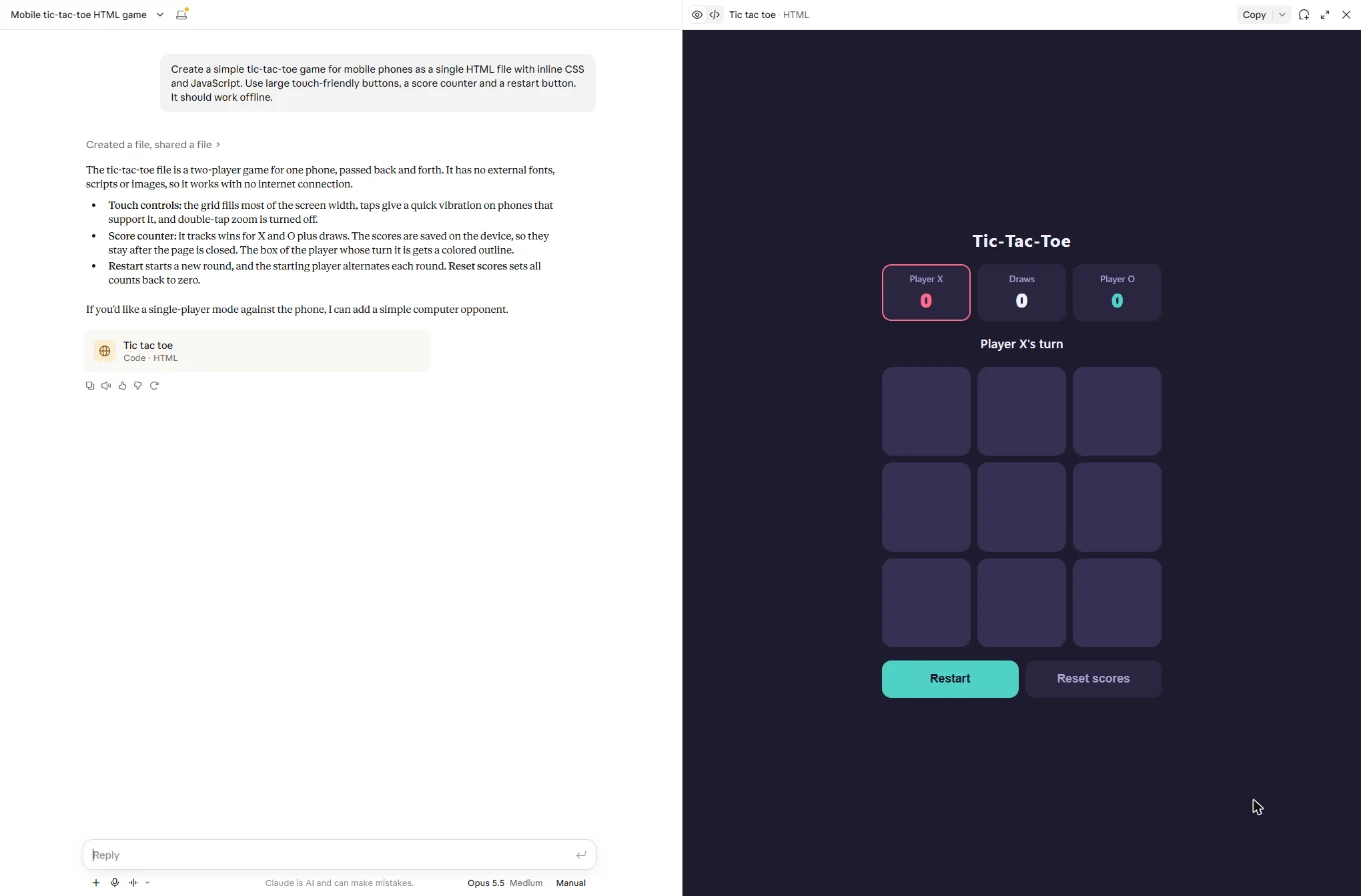
In under a minute Claude creates the file and shows a live preview next to the chat. Play a few moves right there to check that the game works before you move on.
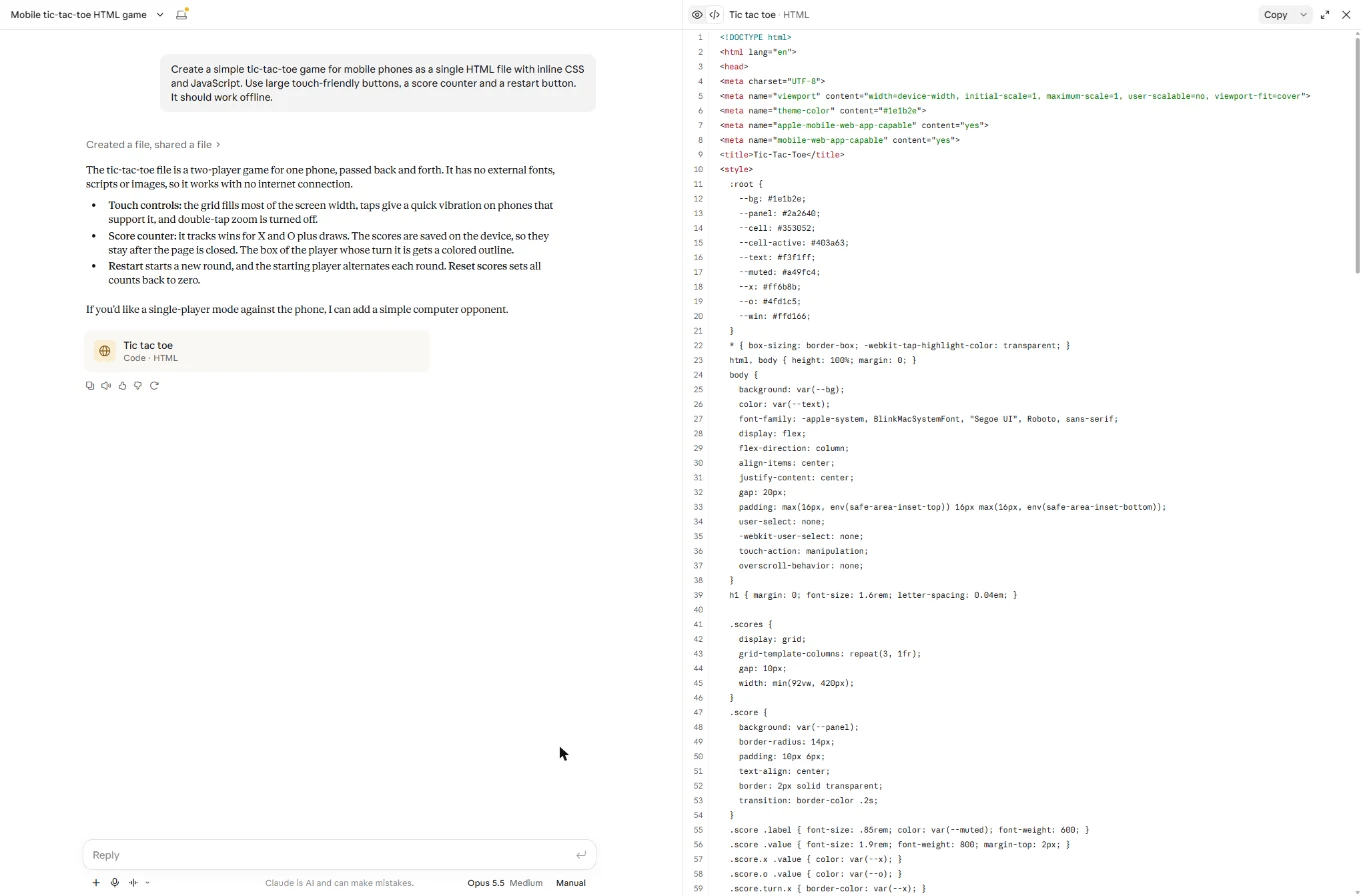
Switch the panel to code view and click Copy to copy the whole HTML file.
Step 2
Paste the Code into AppsGeyser
Go to appsgeyser.com/create-app. Choose the HTML tab and paste the code into the “Paste HTML from AI Tools” field. Then enter an app name and your email.
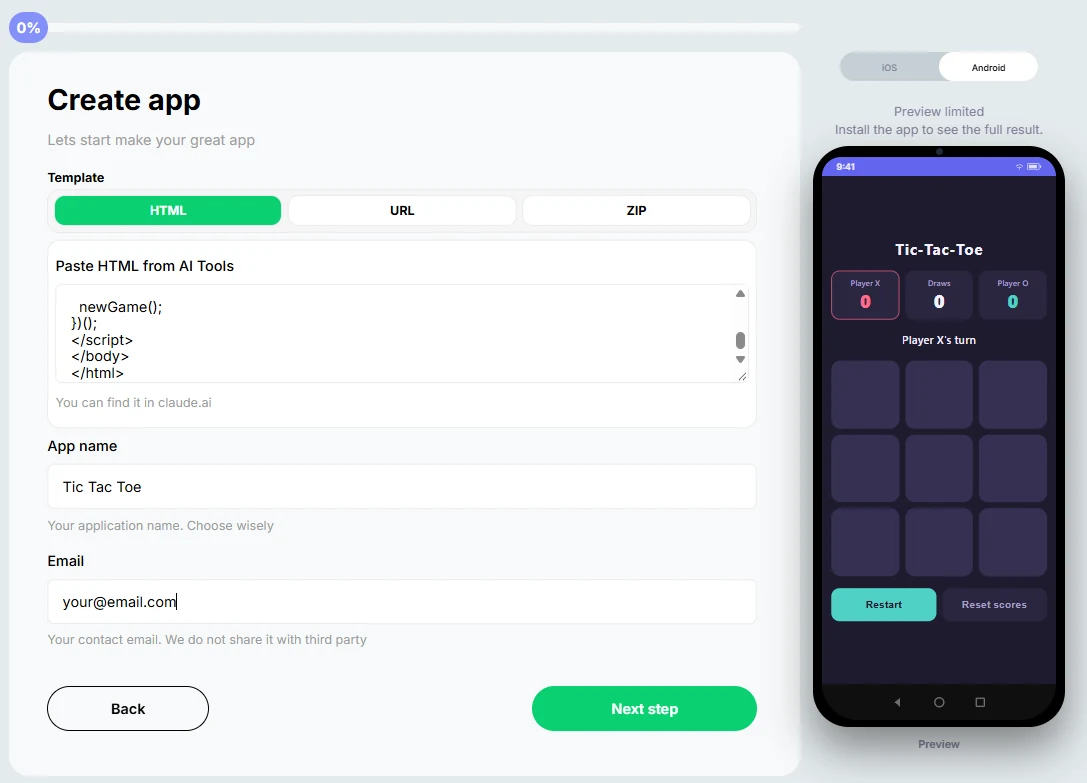
The preview on the right shows your app on a phone screen, so you can check it before you continue. Click Next step.
Built your app in another AI tool?
The flow is the same, only the export step differs. Follow the guide for your tool:
Step 3
Add an Icon and a Color Theme
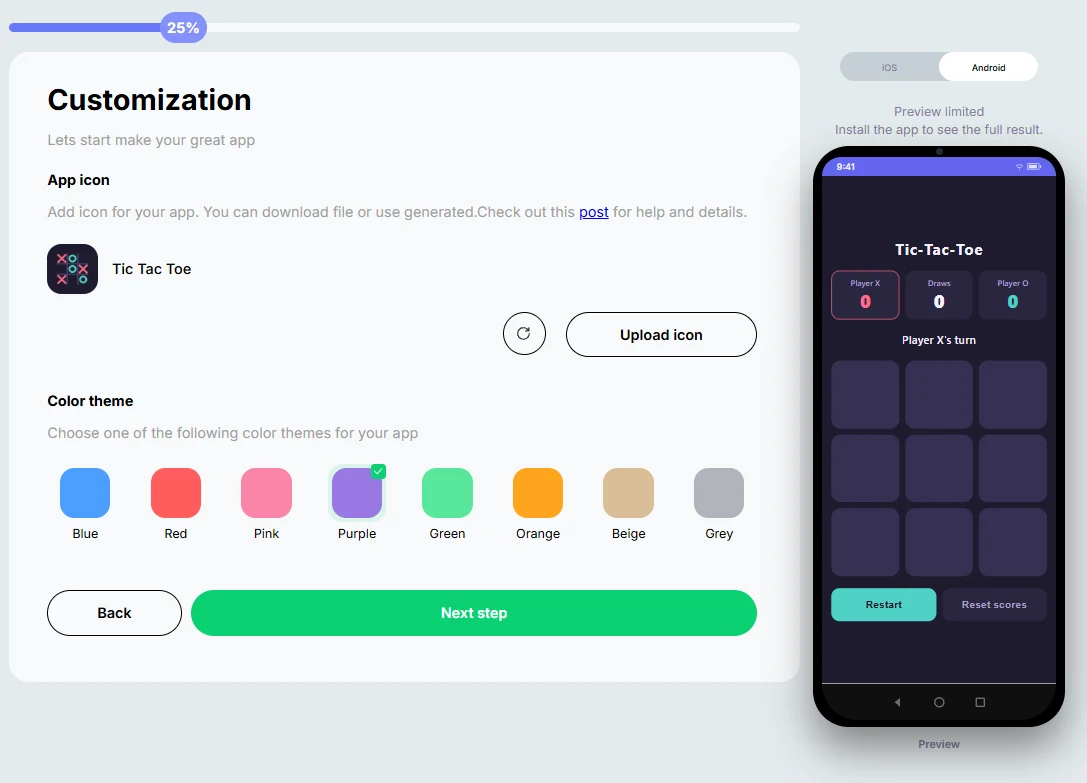
On the Customization screen, click Upload icon to add your own image, or use the generated one. Then pick a color theme. We chose purple to match the game.
Step 4
Choose Optional Features
The Feature screen lets you add extra tabs, such as WhatsApp, Facebook, X, YouTube, a blog or a map, and choose the layout (slider, bottom menu or tabs) and whether to show an action bar.
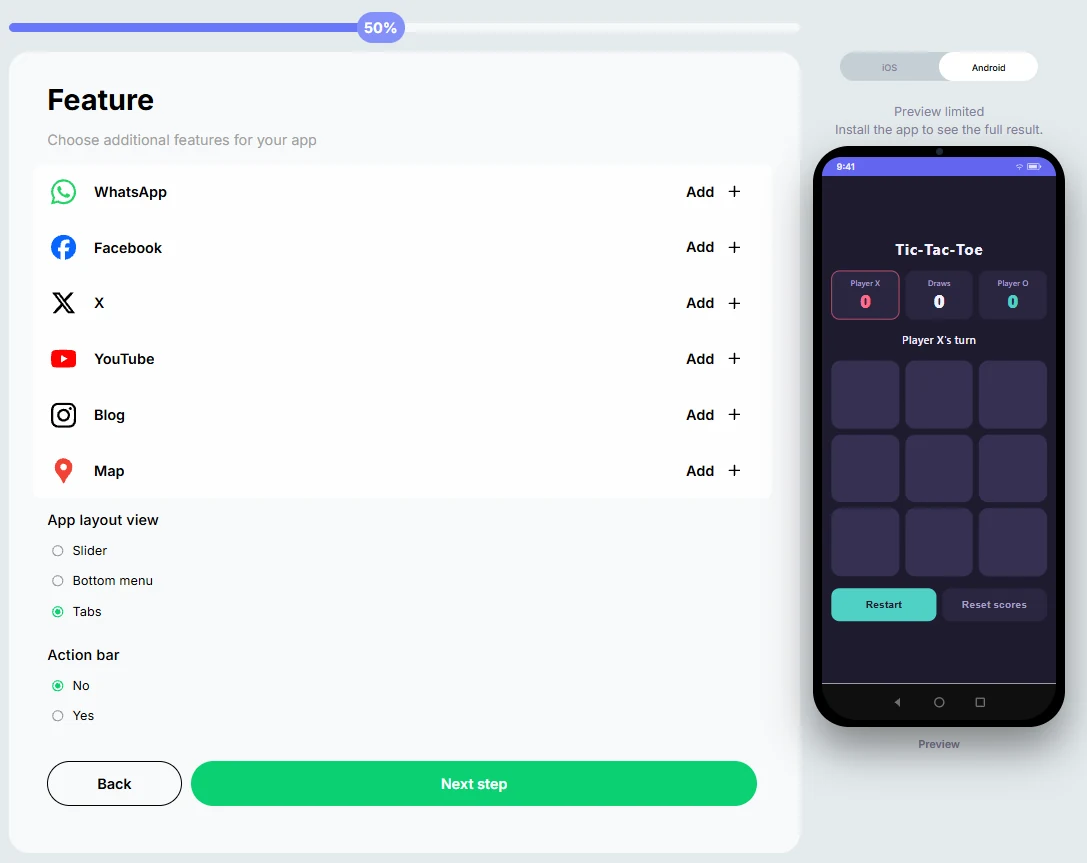
A simple game does not need any of them, so we kept the defaults. For a business or content app, links to your social pages or a map are worth adding. Click Next step.
Step 5
Download Your Android App
The last screen shows extra services: turnkey publishing on Google Play, an iOS version for iPhone, and full access to the source code. You can skip them for now and click Download.
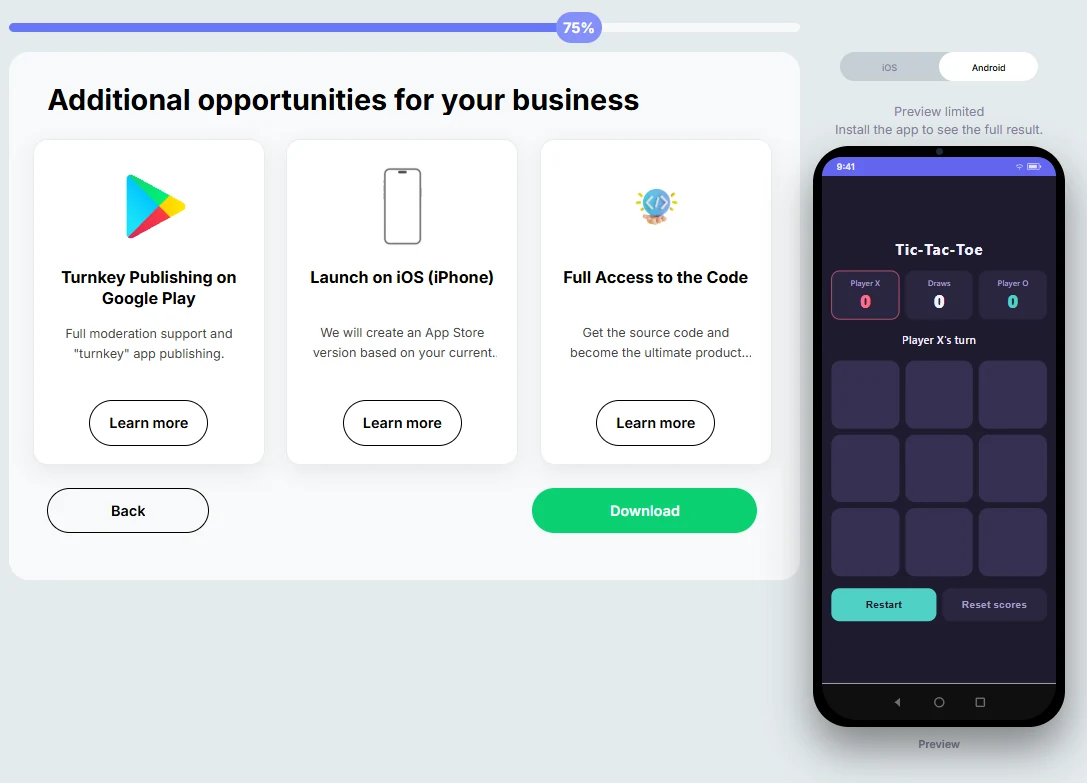
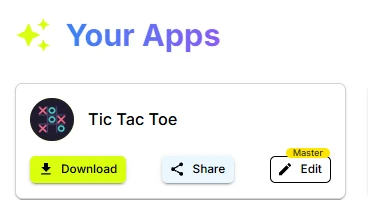
At this point AppsGeyser asks you to sign in or create a free account, so your app is saved and you can come back to it. After that, your app appears in the dashboard under Your Apps.
Step 6
Install, Test and Share Your App
Click Download on the app card. A window opens with every version of your app:
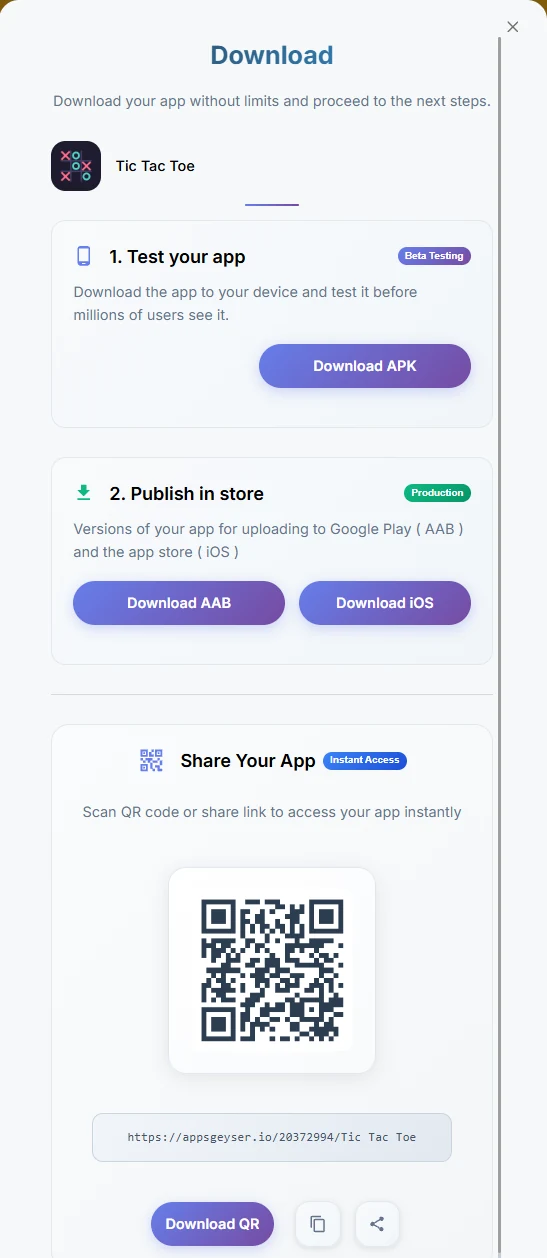
| Option | What it is for |
|---|---|
| Download APK | Install the app on your own Android phone and test it |
| Download AAB | The file you upload to Google Play when you publish |
| Download iOS | Order an App Store version for iPhone (paid service) |
| QR code and link | Let friends open your app instantly by scanning or tapping a link |
After you click Download APK, you may see an offer to upgrade to Premium. You can close it: your free APK still downloads.
To install the APK, open the file on your phone. If Android asks for permission, allow installing apps from this source. Then open the app and play.
How to Publish Your App on Google Play
When you are happy with the app, download the AAB file and upload it to Google Play through your own Google Play Console developer account. You will need a store listing, screenshots and a privacy policy.
If you would rather not deal with the store yourself, AppsGeyser offers Turnkey Publishing on Google Play: the team prepares and submits the app and handles moderation for you.
5 More AI Prompts for Apps You Can Build
Use the same steps with any of these prompts. Each one asks for a single HTML file that works offline.
Create a memory card matching game for mobile phones as a single HTML file with inline CSS and JavaScript. Use 16 cards with emoji, a move counter, a timer and a restart button. It should work offline.
Make matching game graphics with AI →Create a 10-question multiple-choice quiz about world capitals as a single HTML file with inline CSS and JavaScript. Show one question at a time with large answer buttons, give instant feedback and show the final score. It should work offline.
Full tutorial: make a quiz app with AI →Create a tip calculator for mobile phones as a single HTML file with inline CSS and JavaScript. Let the user enter the bill, pick a tip percentage and split the total between people. Use large inputs and buttons.
Full tutorial: build a calculator app with AI →Create a simple habit tracker as a single HTML file with inline CSS and JavaScript. Let the user add habits, tick them off each day and see a 7-day streak. Save the data in localStorage so it stays after closing the app.
Create a recipe app with 6 sample recipes as a single HTML file with inline CSS and JavaScript. Show recipe cards with a search box and categories, and open a detail view with ingredients and steps. It should work offline.
If Your App Does Not Work After Converting
| Problem | How to fix it |
|---|---|
| Blank screen | Check that you copied the whole file, from <!DOCTYPE html> to </html>. Ask the AI for a single file with no external scripts. |
| Works online, breaks offline | The code loads fonts, libraries or images from the internet. Ask the AI to inline everything and remove external links. |
| Buttons are too small or the layout is cut off | Ask for “large touch-friendly buttons, a responsive layout for phones and a viewport meta tag”. |
| Data disappears after closing the app | Ask the AI to save data in localStorage. |
| Features that need an API key do not work | Do not put secret API keys in the code. Keep the app self-contained, or host the backend separately and use the URL option. |
| ZIP upload fails | Make sure index.html is in the root of the ZIP and the project is HTML, CSS and JavaScript, not a native app. |
Frequently Asked Questions
Which AI tool is best for creating an app?
Any assistant that writes HTML, CSS and JavaScript works. In this tutorial we used Claude because it shows a live preview of the app next to the chat. ChatGPT and Gemini give similar results with the same prompt. For a wider comparison, see our tested list of AI app builders.
Is it free to create an app with AI and AppsGeyser?
Yes. Creating the app and downloading the APK and AAB files is free with a free AppsGeyser account. Free apps show an AppsGeyser banner. Premium plans remove it and add features such as push notifications and app editing.
Do I need an account?
You can build and preview the app without one. To download the APK, you sign in or create a free account, so your app is saved in your dashboard.
Can I publish the app on Google Play?
Yes. Download the AAB file and upload it with your own Google Play developer account, or use the AppsGeyser Turnkey Publishing service.
Can I make an iPhone app too?
Yes, an iOS version is available as a paid service. It is published under your own Apple Developer account.
Can I change my app later?
Editing an existing app is a Premium feature. On the free plan, update the code in your AI chat and create a new version of the app.
Turn Your AI Idea into an App
Write a prompt, paste the code and download your Android app in minutes. Learn more about the AppsGeyser AI app builder.
Create Your App Free