How to Convert a v0 App to APK for Android
Built a useful web app with v0 and want Android users to install it? You do not have to rebuild the interface in Kotlin or start again in Android Studio.
The practical workflow is straightforward: finish the mobile experience in v0, publish the project to a public Vercel production URL, and use AppsGeyser to turn that live web app into an Android application.
Quick answer: v0 does not directly export an Android APK. It creates web applications that can be deployed to Vercel. Once your project has a public production URL, you can enter that URL in the AppsGeyser Website App builder, generate an APK for device testing, and prepare an AAB if you plan to publish a new app on Google Play.
v0 project → Vercel production URL → AppsGeyser → Android APK/AAB
If your production URL is already live and mobile-friendly, you can move directly to the Website App builder. Otherwise, work through the preparation steps below first.
What Is v0?
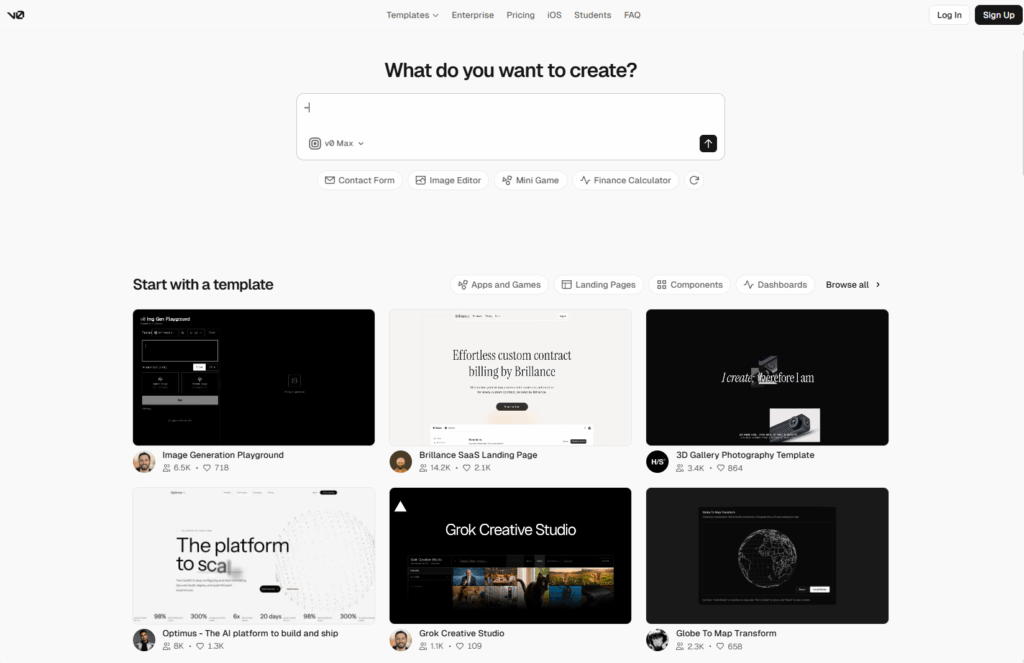
v0 is Vercel’s AI development agent for creating real code, interfaces, full-stack applications, and agents from natural-language prompts.
You can use it to build screens, refine layouts, add application logic, connect data, create backend functionality, and deploy a finished project through Vercel.
That makes v0 useful for mobile-first web products such as client portals, directories, booking tools, dashboards, calculators, educational products, lightweight SaaS apps, and MVPs.
The important distinction is that the result is still a web application. If you want users to install it as an Android app, you need a separate packaging step.
What Does “v0 to Mobile App” Mean?
In this workflow, your v0 project is not translated into native Android source code.
Instead, the deployed website remains the main content source for an Android application. Android supports displaying web content inside apps through technologies such as WebView, and a website-based app can wrap that content in an installable Android experience.
With AppsGeyser, you can use your public website URL as the foundation of the app and configure app-level elements such as the app name, icon, navigation, tabs, and supported push-notification options.
This approach can be much faster than building a separate native application, but the Android experience still depends heavily on the quality and mobile behavior of your web app.
A broken form, desktop-only layout, or unreliable login flow will not automatically become better after you package the website.
Before You Convert a v0 Project to APK
Prepare the production version of your project before opening the Android app builder.
You should have:
- A working v0 project with the main user journey tested from start to finish.
- A public HTTPS production URL deployed through Vercel.
- A responsive interface that works comfortably on a real phone.
- An app name, square icon, and short description.
- Permission to package and distribute the website or application.
- A privacy policy when your app collects or processes user information where one is required.
Do not use a localhost address, v0 editor URL, developer-only link, or protected deployment that ordinary users cannot access.
How to Convert a v0 App to an Android APK
1. Build the v0 Project for Mobile Use
A responsive desktop page is not automatically a good Android app experience.
Design for narrow screens from the beginning and describe complete interactions rather than asking v0 only for a visual style.
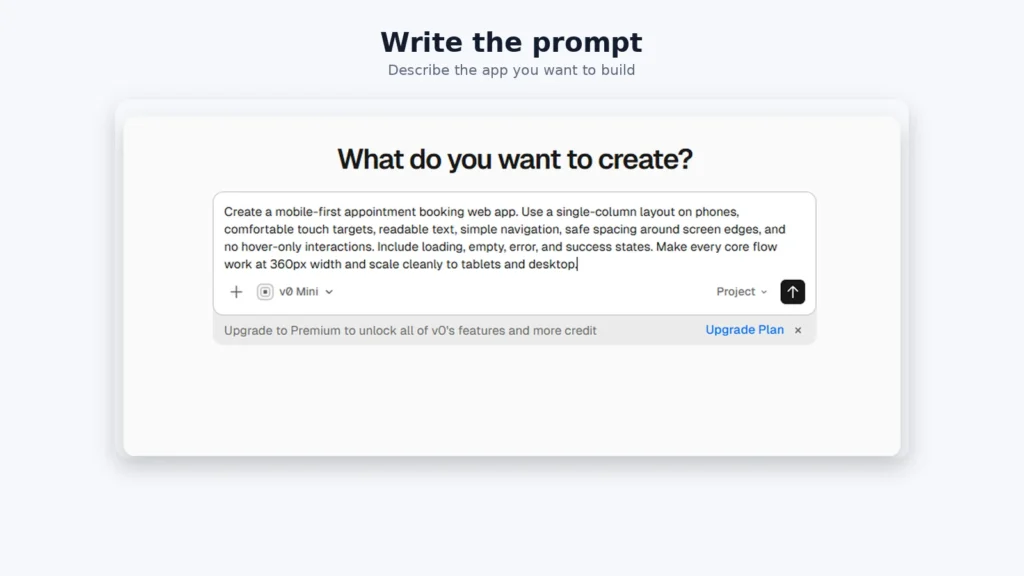
For example, your prompt could ask for:
Create a mobile-first appointment booking web app. Use a single-column layout on phones, comfortable touch targets, readable text, simple navigation, safe spacing around screen edges, and no hover-only interactions. Include loading, empty, error, and success states. Make every core flow work at 360px width and scale cleanly to tablets and desktop.
Continue refining the project until navigation, forms, validation, account states, and data loading all work correctly.
A polished home screen is not enough if users cannot finish the booking, checkout, login, or save flow.
2. Test the Web App on a Real Phone
Open the deployed or testable project in a mobile browser and use it as a real customer would.
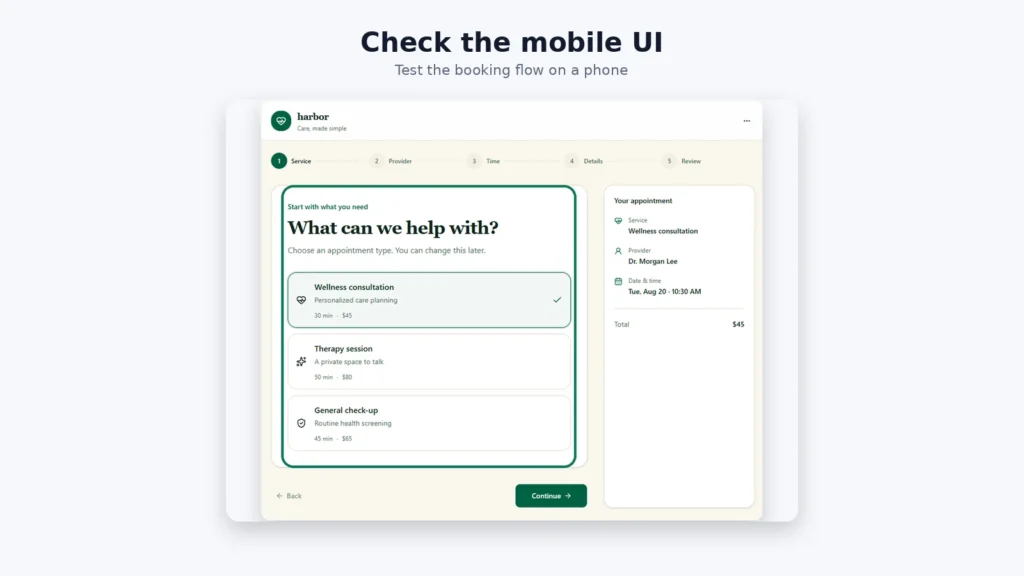
Check:
- Menus, bottom navigation, back behavior, and important deep links.
- Forms, the on-screen keyboard, validation messages, and submit buttons.
- Login, logout, password reset, and session persistence.
- File uploads, downloads, camera access, or location access if your app uses them.
- Checkout, payment, and third-party redirects.
- Cookie banners, modals, and fixed elements that could cover important controls.
- Loading performance on mobile data as well as Wi-Fi.
Fix web problems before packaging the app.
If a modal does not fit on a small screen or a form cannot be submitted in a mobile browser, converting the project to an APK is unlikely to solve the underlying issue. For the general URL-based workflow, see how to convert a website to APK.
3. Publish the v0 Project to Vercel
Use v0’s production publishing workflow to create a Vercel production deployment.
After the deployment is ready, copy the public HTTPS URL.
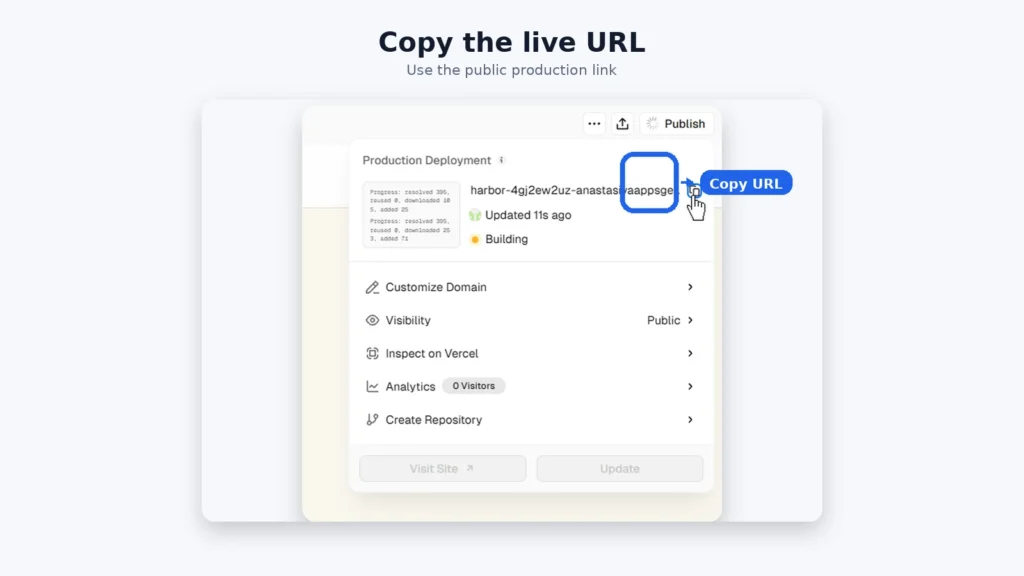
A typical Vercel-hosted project may use a vercel.app address, or you can connect a custom domain.
Open the production URL in a private browser window before continuing. Confirm that an ordinary visitor can load the application without being signed in to your v0 or Vercel account.
Use the public production URL intended for end users rather than an editor, local, protected, or development-only link.
That URL will become the web content source for your Android app.
4. Verify Production Features and Environment Settings
A project that works in preview can behave differently after deployment.
If your v0 application uses authentication, databases, external APIs, email services, payments, or server-side functions, test them again on the production domain.
Confirm that:
- API routes and server-side features respond correctly.
- Authentication providers recognize the production callback URLs.
- Required domains are included in allowed-origin settings.
- Private API keys and other secrets remain in protected server-side environment variables rather than browser code.
- Images, scripts, fonts, and API requests load securely over HTTPS.
Pay particular attention to anything that depends on a domain name or redirect URL.
5. Paste the Vercel URL Into AppsGeyser
Open the AppsGeyser Website App builder and enter the complete production URL, including https://.
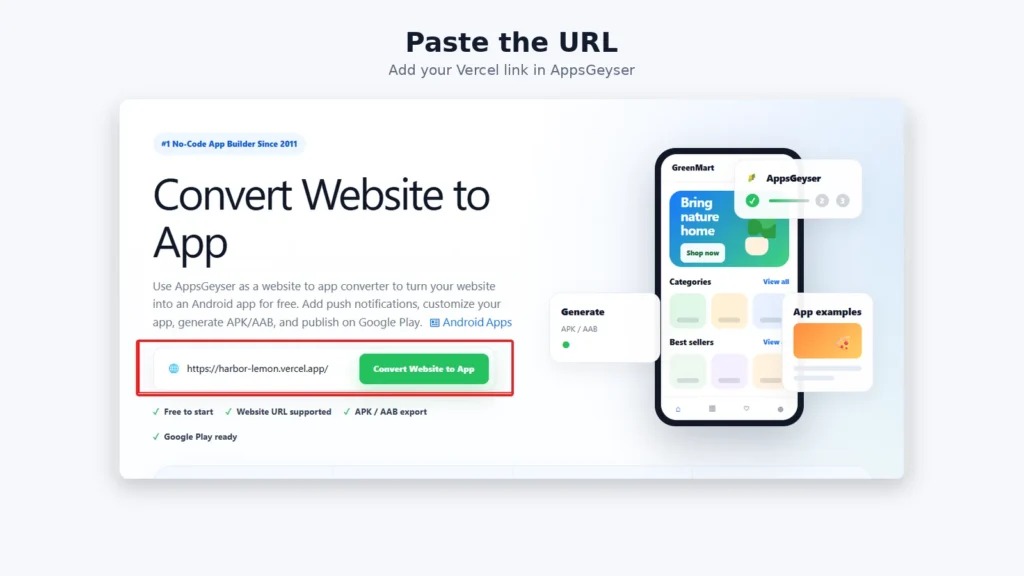
AppsGeyser uses the live website as the main content source for the Android application.
Continue through the builder and configure the app for your project.
Choose a clear app name, upload a recognizable square icon, review the mobile preview, and select appropriate navigation and design settings.
You can also consider app-level features such as tabs or push notifications when they provide genuine value to the user rather than adding complexity.
6. Generate an APK for Testing
Generate the Android application and use an APK to install and test it directly on a device.
If Android prevents installation from the source you are using, you may need to temporarily allow installation from that source in your device settings.
Treat the first APK as a test build.
A website that looks correct in a browser can still behave differently when displayed inside an installed application.
7. Test the Installed Android App
Install the APK on at least one real Android phone. If possible, also test another screen size or Android version.
Repeat every important user flow:
- Launch the app from a cold start.
- Return after sending it to the background.
- Navigate between important screens.
- Test Android back-button behavior.
- Sign in, sign out, and recover an account.
- Complete forms and file inputs.
- Test downloads and any requested permissions.
- Open external links.
- Test maps, email links, phone links, and third-party services.
- Try a slow connection and temporary network failure.
If the same problem happens in Chrome on the phone, fix the v0 web application first.
If the problem happens only in the installed app, investigate the app configuration, embedded-browser compatibility, link handling, or permission behavior.
Production URL vs. Exported Files
For most interactive v0 projects, using the hosted production URL is the simpler approach.
A Vercel production URL is especially suitable for applications that depend on authentication, databases, API routes, server functions, or frequent web updates.
A local HTML or ZIP package makes more sense only when the project can run correctly as a self-contained static website.
Raw framework source code is not automatically a ready-to-run offline website package. A frontend project must first be built or exported into usable static files with a working entry page and correct asset paths.
If your v0 project is genuinely static, the AppsGeyser HTML-to-APK guide covers the file-based approach in more detail.
Will the Android App Update When the v0 Project Changes?
For a URL-based AppsGeyser app, many web-content changes can appear automatically because the app continues to load the live production website.
If you publish new content, adjust a layout, or change web-based functionality while keeping the same production URL, users can often see those updates without receiving a completely new Android package.
That does not mean every app change is automatic.
You may still need a new build when changing app-level settings such as the icon, package configuration, native permissions, or other wrapper-specific features.
Retest the installed app after significant website changes even when a rebuild is not required.
Common v0-to-APK Problems and Fixes
Blank or Error Screen
Possible causes: a protected or incorrect URL, failed production deployment, inaccessible resource, or application error.
What to do: open the production URL in a private browser, confirm that it is public, and review the Vercel deployment and application logs.
Layout Does Not Fit the Screen
Possible causes: fixed-width layouts, oversized modals, desktop-first design, or incomplete mobile states.
What to do: return to v0, correct the interface for a narrow viewport such as 360px, and retest it on a real phone.
Login Fails
Possible causes: incorrect production callback URLs, cookie behavior, or an authentication provider that restricts embedded user-agents.
What to do: test each authentication method separately and make sure the production domain is configured correctly with the provider.
API or Database Features Fail
Possible causes: missing production environment variables, incorrect CORS settings, different backend configuration, or blocked production endpoints.
What to do: verify production environment variables, allowed origins, HTTPS endpoints, server functions, and application logs.
External Links Open Incorrectly
Possible cause: a link that should open in a browser or another app is being handled inside the embedded web experience.
What to do: test payment, map, email, telephone, and social links individually and configure external-link behavior appropriately.
The App Feels Slow
Possible causes: oversized images, large JavaScript bundles, slow APIs, excessive third-party scripts, or weak mobile-network performance.
What to do: optimize the web project first. Reduce asset weight, improve loading states, investigate slow requests, and retest before generating another build.
Authentication Needs Special Testing
Authentication is one of the areas most likely to behave differently after a web application is packaged.
For example, Google OAuth policies restrict developers from sending Google authorization requests through an embedded user-agent under the developer’s control.
If your v0 application uses Google Sign-In or another third-party identity provider, test the complete sign-in flow inside the installed Android app.
Depending on the authentication system and implementation, an authorization step may need to open in the system browser rather than remain inside an embedded browser.
Also test:
- Password-manager behavior.
- Magic links.
- Email verification.
- Multi-factor authentication.
- Password resets.
- Session persistence.
Do not assume authentication is ready for release just because it works in a desktop browser.
APK for Testing, AAB for Google Play
APK and AAB serve different purposes in this workflow.
An APK is useful for installing the application directly on an Android device and testing it before release.
For a new Google Play app, prepare an Android App Bundle. Google has required new Google Play apps to publish using the AAB format since August 2021.
Before submitting the app, prepare:
- A stable application with working navigation and no empty or broken screens.
- An AAB that meets current Google Play technical requirements.
- Store title and descriptions.
- App icon, screenshots, and other required store assets.
- Privacy information and Data safety declarations where applicable.
- Proof that you own or are authorized to distribute the website content.
- A complete test of authentication, analytics, payments, advertising, and third-party services used by the app.
Google Play’s Webviews and Affiliate Spam policy also restricts apps whose primary purpose is to display a website without permission from its owner or administrator.
Only package content you control or are authorized to distribute, and make sure the result provides a stable and useful experience.
For the complete publishing workflow, see the AppsGeyser guide to publishing an Android app on Google Play.
When This Workflow Is a Good Fit
Converting a v0 project through its production URL is particularly useful for:
- MVPs that need an installable Android version without a separate native rebuild.
- Client portals and internal tools.
- Dashboards and directories.
- Calculators and educational tools.
- Booking and content applications.
- Community projects.
- Lightweight SaaS products.
- Web applications that change frequently.
A native or more deeply integrated Android implementation may be more appropriate when the core product depends heavily on advanced background processing, Bluetooth, sophisticated offline storage, high-performance graphics, or deep operating-system integration.
FAQ: v0 to APK
Can v0 create an Android APK?
Not directly. v0 creates web applications and code rather than exporting a native Android APK. The recommended workflow is to deploy the project to a public Vercel production URL and then use that URL in AppsGeyser to create an Android app.
How do I turn a v0 project into an Android app?
Finish and test the mobile web experience in v0, publish it to Vercel, copy the public production URL, enter it in the AppsGeyser Website App builder, configure the Android app, generate an APK, and test it on a real phone.
Which v0 or Vercel URL should I use?
Use the public production URL intended for your users. Avoid localhost addresses, editor links, protected deployments, and development-only URLs that ordinary visitors cannot access.
Will changes to my v0 project appear in the Android app?
Many web-content changes can appear without rebuilding the app because a URL-based Android app continues to load the live website. Changes to app-level settings may still require another Android build.
Can I publish a v0 app on Google Play?
Yes, provided that the resulting Android app is useful, stable, authorized, and compliant with current Google Play requirements. For a new listing, prepare an AAB and complete the required store, privacy, policy, and testing steps.
Turn Your v0 Project Into an Android App
v0 can take an idea from a prompt to a working web application, while Vercel provides a production deployment for that project.
AppsGeyser provides the Android packaging step by using the live web application as the foundation for an installable Android app.
The strongest results come from treating mobile quality as part of the original web build: design for touch, test every important flow on a phone, use the public production URL, and verify authentication and external links after installing the APK.