Bolt.new to APK: Turn Your Bolt Project into an Android App
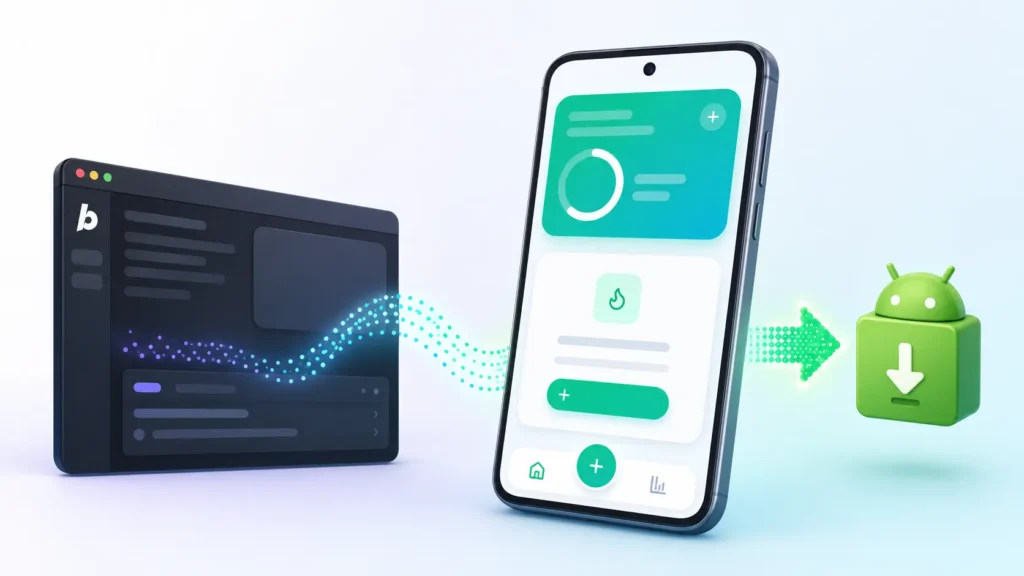
Convert your Bolt.new project into an Android app in minutes
Built something in Bolt.new and want it on Android? You don’t need to touch Android Studio, Java, or Kotlin. AppsGeyser turns your Bolt project — either the live deployed URL or the exported code — into an installable Android APK.
- No coding required
- Works with the Bolt.new deployed URL or the ZIP export
- Free to generate and test
In this guide you’ll learn:
- what happens when you turn a Bolt.new project into an Android app,
- two practical conversion methods (deployed URL vs ZIP export),
- which method fits your project,
- how to test the APK before sharing or publishing,
- common problems and how to fix them.
What “Bolt.new to APK” actually means
Bolt.new is an AI tool that generates full web projects — frontend, and often backend — from a text prompt, then lets you preview, edit, and deploy them instantly.
When people search bolt.new to apk, they usually want one of two things:
- Wrap the live Bolt app in an Android shell. Your app loads inside a WebView (a built-in browser component in Android) that points at your deployed Bolt URL.
- Package the exported code as a standalone app. You download your Bolt project as a ZIP and convert that into an APK directly.
Either way, you’re not recompiling Bolt’s code into native Android code — you’re packaging your web app (hosted or bundled) into an installable Android app.
Method A vs Method B: which one fits your project?
| Method A — Deployed URL | Method B — ZIP export | |
|---|---|---|
| Best for | Apps with a backend, database, or API calls | Static/frontend-only Bolt projects |
| Setup time | ~5 minutes | ~10 minutes |
| Requires | A live Bolt.new deployment (Netlify link) | Bolt’s “Export → Download” ZIP |
| Works offline | No — needs internet, same as the live app | Partially — if the project has no backend calls |
| Updates | Automatic — app always loads the latest deploy | Manual — re-export and rebuild after changes |
If your Bolt project has a working backend (auth, database, API routes), use Method A — the ZIP export usually won’t include a working server, so the app would break without the live URL behind it. If your Bolt project is a static frontend (landing page, dashboard UI, portfolio, simple tool), either method works, and Method B gives you a fully offline-capable app.
Method A: Convert your Bolt.new deployed URL to APK
This is the fastest path and works for almost any Bolt project, including ones with a backend.
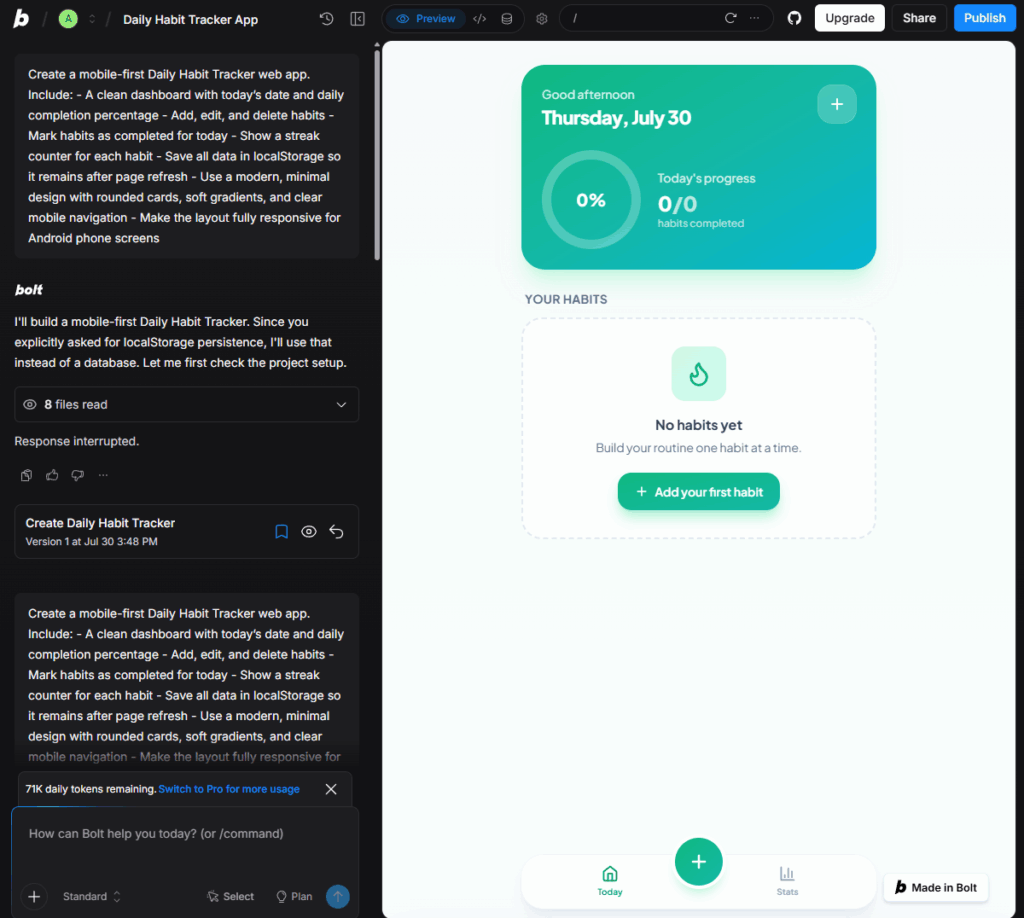
Step 1. Deploy your Bolt.new project
Inside Bolt, use the built-in deploy option to publish your project and get a live URL (usually a Netlify link). If you haven’t deployed yet, do this first — AppsGeyser needs a public, working URL.
Step 2. Open the AppsGeyser Website App builder
Go to the Website App template.
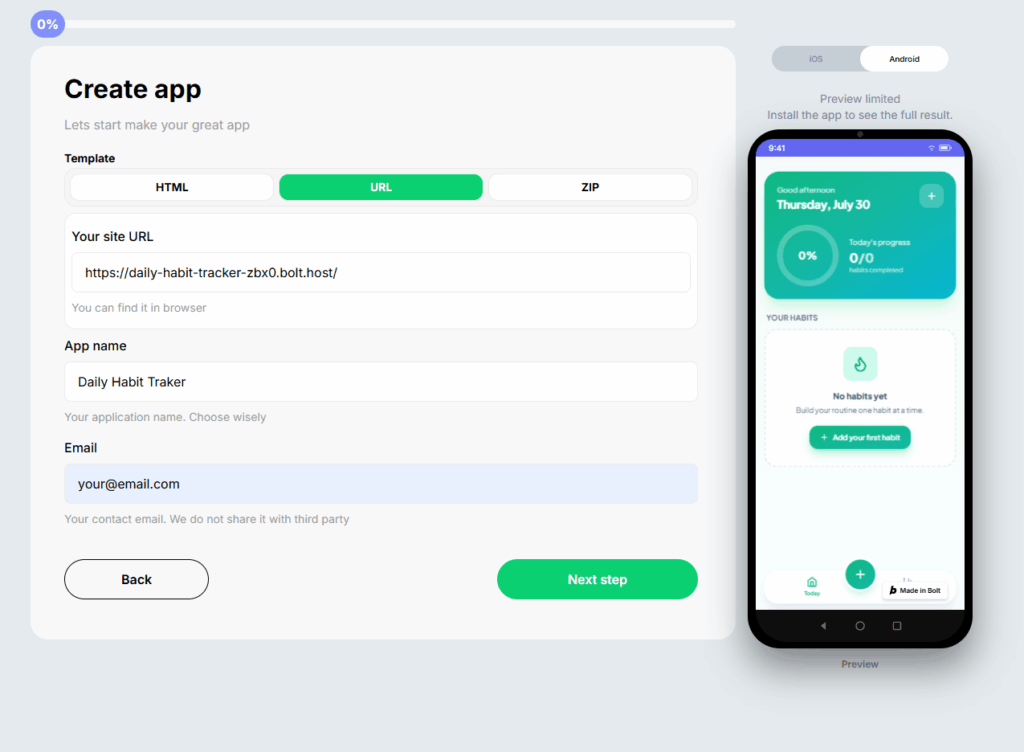
Step 3. Paste your Bolt.new deploy URL
Use the full public https:// link. Avoid the Bolt editor/preview URL (bolt.new/~/...) — that’s your workspace, not the live app your users will see.
Step 4. Name your app and add an icon
Give your app a name that matches what it does, and upload an icon (or use a default one for testing).
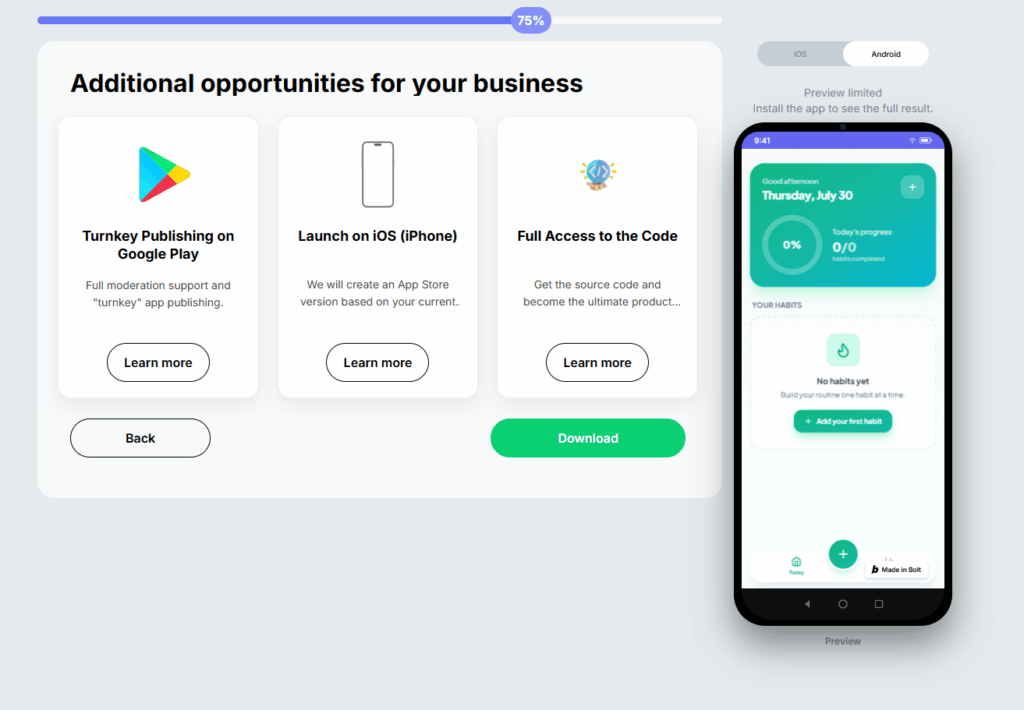
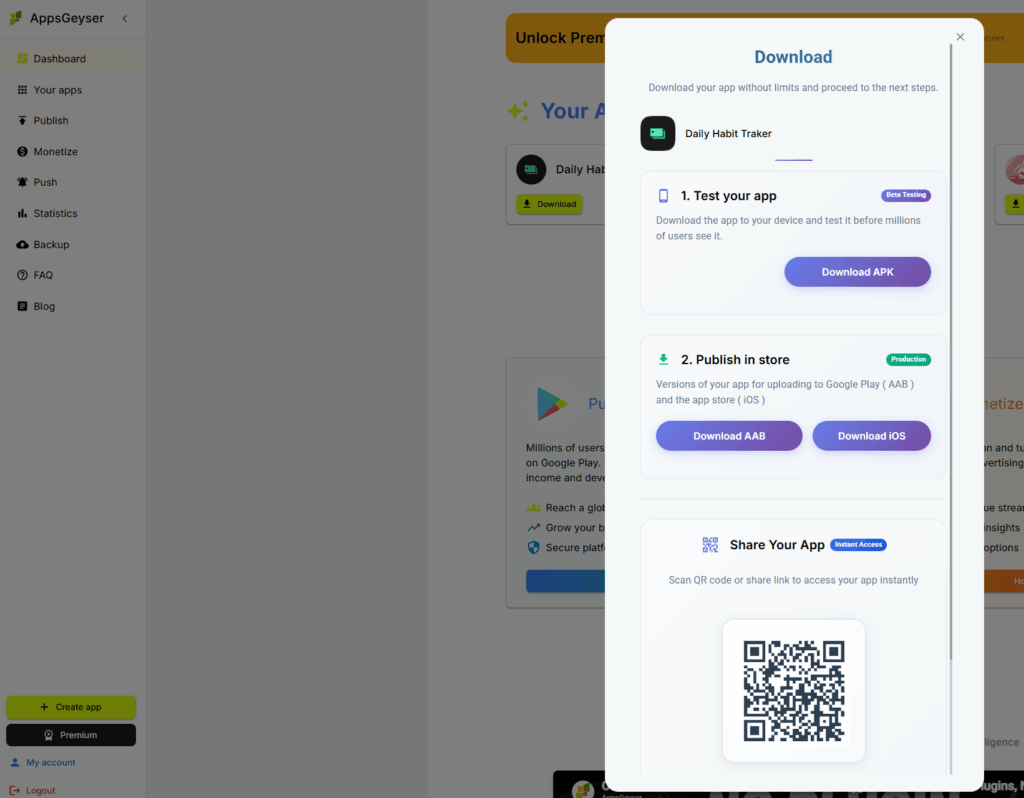
Step 5. Generate and test the APK
Download the APK and install it on an Android device or emulator. Check that login, forms, and any API-dependent screens load correctly — since this method depends on live internet access to your Bolt deployment.
Step 6. Publish
Once tested, you can publish to Google Play or share the APK directly.
Tip: If your Bolt project uses authentication, test the login flow specifically inside the WebView — some OAuth providers block sign-in inside embedded browsers. If that happens, configure external links to open sign-in screens in the system browser instead of inside the app.
Method B: Export your Bolt.new project as ZIP and convert to APK
Use this if your Bolt project is frontend-only, or if you want an app that doesn’t depend on your Bolt deployment staying online.
Step 1. Export your project from Bolt.new
In Bolt, click the project name in the top-left corner, then choose Export → Download. This downloads a .zip file with your project’s source code.
Step 2. Check what’s inside
Unzip the file and confirm you have a working index.html (or a built /dist folder if it’s a framework project). If your project was built with a framework — React, Vue, etc. — you may need to run a build step first so you’re packaging compiled static files, not raw source code.
Step 3. Prepare the ZIP for AppsGeyser
Your ZIP should have index.html at the root, alongside your assets:
index.htmlassets/(images, icons, fonts)styles/or bundled CSSscripts/or bundled JS
Step 4. Upload to the ZIP App builder
Open the ZIP app maker, upload your prepared ZIP, name your app, and add an icon.
Step 5. Generate and test
Generate the APK, install it on a real device, and check that all pages, images, and scripts load correctly — broken relative paths are the most common issue after zipping.
Need the full walkthrough for ZIP projects in general? See: Convert ZIP web content to an app.
Before you convert: quick Bolt.new project checklist
- Backend check: does your app call APIs, a database, or auth? If yes, Method A is safer.
- Mobile layout: Bolt projects are usually responsive by default, but test your deployed URL on a real phone browser first.
- Entry point: for ZIP exports, confirm
index.htmlis present and paths are relative, not absolute. - HTTPS: make sure your Bolt deploy URL uses HTTPS — mixed content can break inside WebView.
App settings worth setting up
- Back button behavior: enable in-app navigation so the Android back button moves through your app’s screens instead of closing it instantly.
- External links: decide which links (payment, auth, third-party sites) should open in the system browser instead of inside the app.
- Push notifications: useful if your Bolt project is a tool or dashboard people will return to.
- Orientation: lock to portrait for most dashboard/tool-style apps; leave unlocked for content-heavy layouts.
Testing your Bolt-to-APK app before publishing
Device testing
Test on at least 2–3 Android versions and screen sizes.
Network testing
If you used Method A, test on Wi-Fi, mobile data, and a slow connection — the app depends on reaching your live Bolt deployment.
Functional testing
Check forms, buttons, navigation, and any auth flows. If your Bolt project has a database, confirm data loads and saves correctly through the app.
Troubleshooting
“The app shows a blank screen”
For Method A: your Bolt deploy may be down, or the URL entered is the editor link instead of the live deploy link. For Method B: check that index.html exists at the ZIP root and that asset paths are relative.
“Login doesn’t work inside the app”
Some auth providers (Google, GitHub OAuth) block sign-in inside embedded WebViews. Set those specific links to open in the external browser.
“My ZIP export has no backend files”
This is expected — Bolt’s ZIP export is frontend-focused. If your project needs a backend, use Method A (deployed URL) instead.
“Data doesn’t save / API calls fail”
Likely CORS or mixed-content issues, or the app is trying to reach a preview URL instead of your live deploy. Confirm you’re using the production deploy URL from Bolt.
FAQ: Bolt.new to APK
Can I turn my Bolt.new project into an Android app for free?
Yes. AppsGeyser lets you convert a Bolt.new deployed URL or exported ZIP into an Android APK without coding, for free.
Do I need to export my code, or can I just use the live link?
Either works. If your project has a backend, database, or login, use the live deployed URL. If it’s a static frontend, you can also convert the exported ZIP.
Will my Bolt.new app update automatically inside the Android app?
Only if you use the deployed-URL method — the app loads your live Bolt deployment, so updates appear automatically. The ZIP method is a snapshot and needs to be re-exported and rebuilt after changes.
Can I publish a Bolt.new-based app on Google Play?
Yes, as long as the app is stable, functional, and complies with Google Play policies. Make sure your Bolt project works well on mobile before publishing.
What if my Bolt project uses a database or authentication?
Use Method A (deployed URL). The ZIP export typically won’t include a working backend, so a database- or auth-dependent app needs to stay connected to your live Bolt deployment.
Do I need Android Studio or coding knowledge?
No. Both methods use AppsGeyser’s no-code builder — you paste a URL or upload a ZIP, and the APK is generated for you.
Related guides
- If you’re comparing AI app builders before picking one: Best no-code AI app builders
- Building from a plain website instead of Bolt: Convert website to APK
- Have a ZIP project from another tool? Convert ZIP web content to an app
- Built your project in Replit instead? Turn a Replit project into a mobile app
- Built your project in Lovable instead? Turn a Lovable web app into a mobile app