How to Convert a WordPress Website to an Android App (Without Coding)

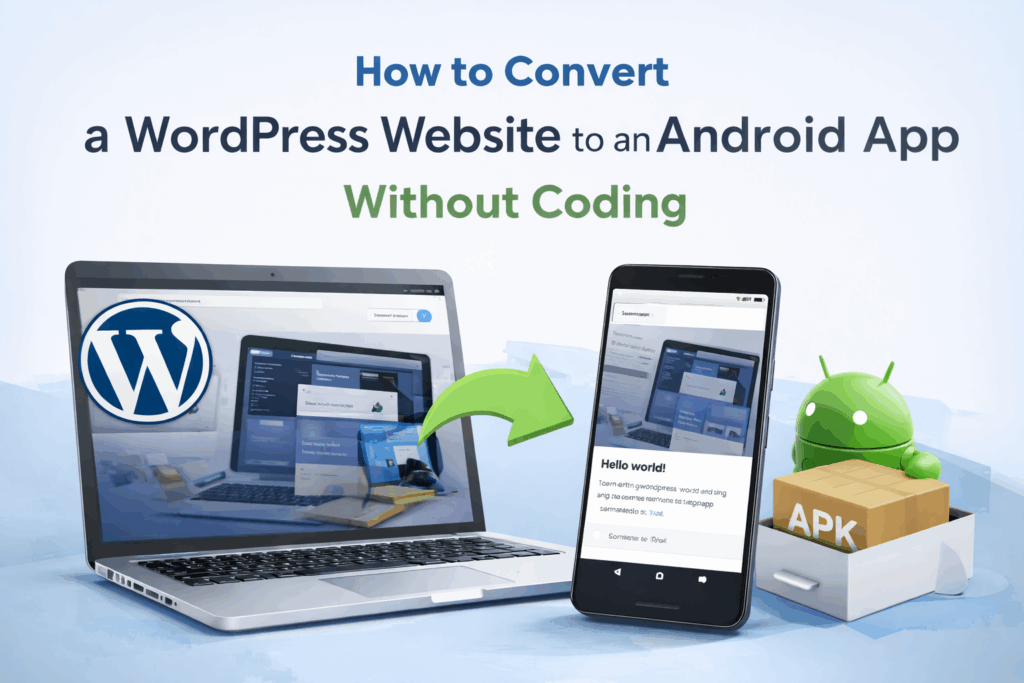
If you already have a WordPress website, turning it into an Android app is one of the easiest ways to improve mobile access, strengthen your brand, and make it easier for users to come back again and again.
Instead of building a mobile app from scratch, you can use your existing website as the foundation and convert it into an app in just a few steps. This approach works especially well for blogs, news sites, business websites, directories, content platforms, and even many WooCommerce stores.
In this guide, you’ll learn what it really means to turn a WordPress site into an Android app, when this approach makes sense, what to check before you begin, and how to create your app with AppsGeyser without coding.
Why convert your WordPress site to an Android app?
A mobile-friendly website is important, but for many businesses and content creators, a website alone is not always enough. An Android app gives users a faster, more direct way to open your content, browse your pages, and interact with your brand from their phones.
Here are some of the main reasons website owners convert WordPress sites into apps:
Easier access for mobile users
Users do not need to open a browser, type your website address, or search for your brand again. Once the app is installed, they can open your website content with one tap from their home screen.
Better repeat traffic
An app icon on the phone keeps your brand visible. This often helps increase return visits compared to relying only on browser bookmarks.
Stronger brand presence
A mobile app can make your project feel more established and easier to trust. This is especially useful for businesses, online magazines, communities, and ecommerce websites.
Opportunity to grow engagement
Apps can support features that help bring users back more often, such as better mobile access, branded presentation, and, depending on your setup, push notifications.
Presence on Google Play
Publishing your app on Google Play can give your business another discovery channel and make your project look more complete in the eyes of potential users.
What does it mean to convert a WordPress website into an Android app?
Turning a WordPress website into an Android app does not necessarily mean creating a fully custom native product from zero.
In many cases, it means taking your existing mobile-ready website and packaging it into an app format that users can install on Android devices. Your content still lives on your WordPress website, while the app gives people a more convenient mobile experience and a direct shortcut to your site.
This approach is often the fastest and most practical choice for website owners who want an app without spending months on development.
It is also a good fit if your WordPress site is already active, regularly updated, and designed to work well on mobile devices.
Who should convert a WordPress site into an app?
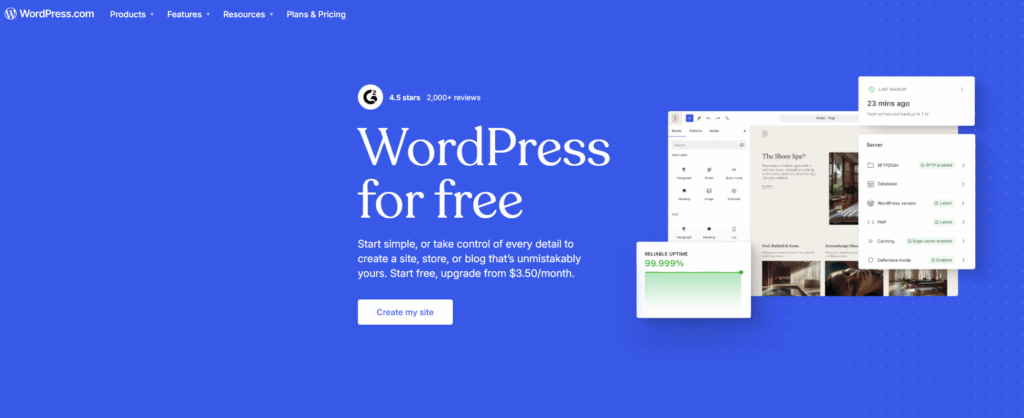
This approach works best for websites that already have content, visitors, and a reason for users to return.
A WordPress to Android app is often a good option for:
- blogs and online magazines
- business websites
- news websites
- event websites
- service providers
- educational projects
- directories and listing websites
- membership or content platforms
- WooCommerce stores
- community and niche content websites
If your audience mainly visits from mobile devices, an Android app can make access faster and more convenient.
When it makes sense — and when it doesn’t
Creating an app is not equally useful for every website. Before you start, it helps to understand when this model works best.
A WordPress app makes sense if:
- your site gets regular updates
- users often return to read, browse, or shop
- your mobile website already works well
- your brand would benefit from stronger visibility on users’ phones
- you want a faster no-code route instead of custom development
It may not be the best fit if:
- your website is just a one-page brochure
- your mobile version is slow or broken
- your content almost never changes
- your site has important features that do not work well on phones
- you need deep custom native functionality from day one
For many small businesses, creators, and content projects, converting an existing website is much more realistic than building a separate app from scratch.
WordPress website vs Android app
A website and an app can work together, but they are not the same thing.
A WordPress website is opened in a browser. An Android app is installed directly on the device and is launched from the home screen. Even when the app is based on your website, the user experience can feel more direct and brand-focused.
Here is the practical difference:
| Feature | WordPress Website | Android App |
|---|---|---|
| Access | Through browser | From home screen |
| Visibility | Browser-based | Constant app icon presence |
| Brand impression | Standard website | Stronger mobile brand presence |
| Repeat visits | Depends on user habits | Easier return access |
| Google Play presence | No | Yes |
| Setup effort | Already exists | Can be created from existing site |
| Development cost | Lower if site already built | Low with no-code conversion |
For many website owners, the best strategy is not “website or app,” but “website plus app.”
Ways to turn a WordPress website into an Android app
There is more than one way to do this, and understanding the options helps you choose the right path.
1. Website-based app conversion
This is one of the fastest methods. You use your existing website as the base and turn it into an installable Android app. This is often the easiest solution for businesses and creators who want a quick launch.
2. No-code app builders
No-code tools let you create an app from your site without programming. This is the most practical option for users who want to move fast, avoid expensive development, and keep the process simple. AppsGeyser offers a straightforward website app builder for this purpose.
3. Plugin-based or WordPress-specific systems
Some services are built specifically around WordPress and can require extra setup, syncing, or platform-specific adjustments. These can be useful, but they may also add complexity.
4. Custom native development
This route gives you maximum flexibility, but it is much more expensive and time-consuming. It usually makes sense only when you need advanced app-specific functionality that cannot be handled with a no-code approach.
For most website owners, a no-code website-to-app solution is the best balance of speed, cost, and simplicity.
What to check before converting your WordPress site into an app
Before you create the app, make sure your website is ready. A good Android app starts with a good mobile website.
Check mobile responsiveness
Open your website on a smartphone and review the most important pages. Make sure text is readable, buttons are easy to tap, menus open correctly, and content does not break on small screens.
If your site already feels awkward on mobile, the app experience will likely have the same issue.
Check loading speed
A slow site often leads to a slow app experience. Compress large images, reduce unnecessary scripts, and make sure pages load smoothly on mobile internet.
Check HTTPS
Your website should use a secure HTTPS connection. This is important for user trust and for proper app behavior.
Review navigation
Menus, categories, search, internal links, and buttons should all be easy to use on a phone. Good navigation is essential because it affects how comfortable the app feels.
Test forms and contact pages
If your site relies on lead forms, booking forms, contact pages, or application forms, test them carefully on mobile.
Test login and restricted areas
If users sign in, access private content, or manage accounts, review the whole flow from a phone.
Review pop-ups and overlays
Aggressive pop-ups may be tolerable on desktop but frustrating inside a mobile app environment. Simplify them if needed.
If you use WooCommerce, test the full shopping journey
For online stores, this step is especially important. Check:
- product pages
- category pages
- filters
- add-to-cart actions
- cart page
- checkout flow
- account area
- payment steps
If your store works well on mobile, it is much easier to turn it into a smooth app experience.
AppsGeyser vs. the main alternatives
Before you commit to a tool, it helps to understand what your options actually are. Here is an honest comparison of the main approaches.
| AppsGeyser | WappPress (plugin) | AppMySite | Custom dev | |
|---|---|---|---|---|
| Setup | No plugin needed — just enter your URL | WordPress plugin install required | Plugin + external dashboard | Full development project |
| Coding required | No | No | No | Yes |
| Free tier | Yes — build and test for free | Free tier available | Free plan (limited) | No |
| iOS support | Android + iOS options available | Android only | Android + iOS | Both |
| Content sync | Automatic (reflects your live site) | Automatic | Automatic | Custom |
| Time to first app | Under 5 minutes | 15–30 minutes | 30–60 minutes | Weeks to months |
| Cost | Free to start; paid plans for publishing | Free/$69/year | From $9/month | $5,000–$50,000+ |
| Best for | Fast launch, no WordPress plugin needed | WordPress-only users comfortable with plugins | Sites needing deeper native features | Complex, custom requirements |
The practical difference between AppsGeyser and plugin-based tools: With AppsGeyser, you do not install anything on your WordPress site. You simply go to the builder, enter your website URL, and the app is generated in the cloud. Plugin-based tools like WappPress require access to your WordPress dashboard and add software to your site. For many users — especially those managing sites they do not fully control, or who want the fastest possible setup — the no-plugin approach is simpler.
When AppMySite makes more sense: If you need deep native features (offline mode, in-app purchases, advanced push segmentation) and are comfortable with a monthly subscription, AppMySite offers more native-like capabilities. The trade-off is cost, setup time, and ongoing fees.
When custom development makes sense: If your app needs features that are genuinely impossible in a WebView — complex animations, deep device hardware access, proprietary data handling — custom development is the right call. It is also the only option if Google Play rejects your app for being too thin. But for the vast majority of WordPress site owners, this level of investment is unnecessary.
How to convert a WordPress website to an Android app with AppsGeyser
Once your site is ready, you can create the app in a few steps.
Step 1. Open the AppsGeyser builder
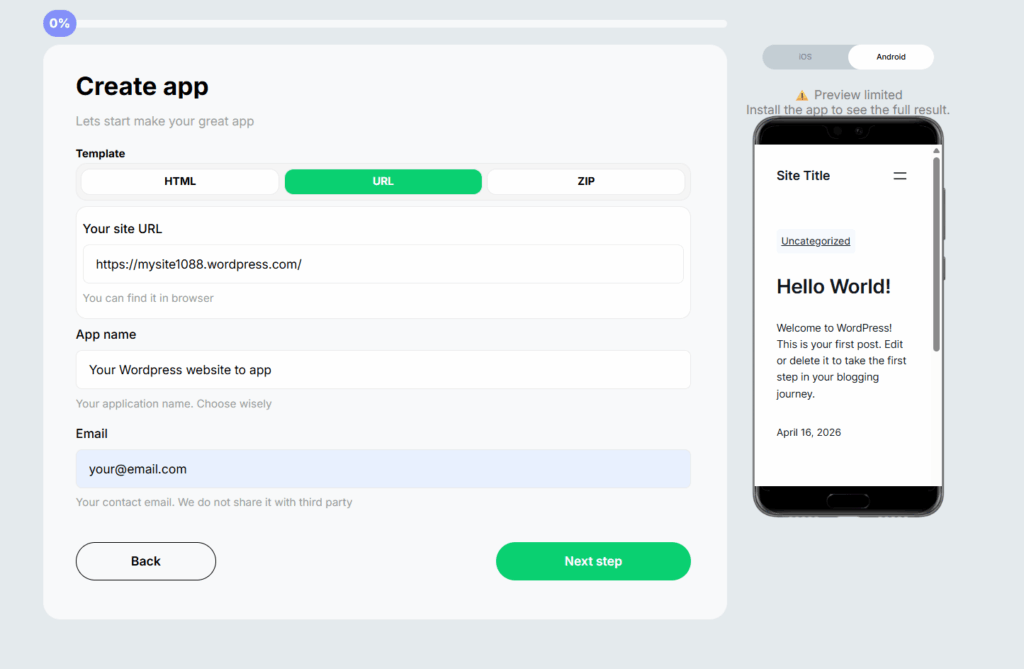
Start by opening the AppsGeyser app builder and choosing the website-based app creation option.
This route is designed for users who already have a live website and want to convert it into an Android app without coding.
Step 2. Enter your WordPress website URL
Paste the URL of your WordPress website into the builder.
You can usually use your homepage, but in some cases it may make sense to focus on a specific section if that is the main mobile destination for your users.
Step 3. Review how your site behaves on mobile
Before moving further, make sure your WordPress site opens properly and the most important pages are easy to use on a phone.
Pay close attention to:
- homepage layout
- article pages
- navigation
- category pages
- forms
- store pages if you use WooCommerce
This is one of the most important steps because the quality of the final app depends heavily on the mobile quality of the website itself.
Step 4. Add your app name and icon
Choose a clear app name that matches your brand and upload an app icon.
This helps create a more polished result and makes the app easier to recognize on users’ phones.
Step 5. Configure the app basics
Depending on your setup, you may be able to adjust branding, splash elements, and other basic app settings.
Keep the experience simple and consistent with your website identity.
Step 6. Add extra features if needed
If your project needs more than a basic website-based app, this is the stage where you can explore additional options, such as features related to engagement, branding, or app growth.
For example, you can review pricing plans to see which extra options are available, or learn more about app monetization if you plan to grow your project after launch.
Step 7. Generate the APK
Once your app details are ready, generate the APK file.
This is your Android application package, which you can install on a device for testing and later prepare for distribution. If you want to learn more about this format, you can also explore AppsGeyser’s APK maker tool.
Step 8. Install the APK on a real phone and test it
Do not rely only on a preview. Install the APK on a real Android phone and test how the app feels in actual use.
Sometimes a page that seems acceptable in theory still needs improvement when opened as an app on a real device.
Check:
- speed
- usability
- readability
- menu behavior
- forms
- checkout
- account pages
- image loading
- link behavior
Step 9. Prepare the app for publishing
After testing the APK on a real device, the next step is to prepare your app for submission to Google Play. At this stage, your goal is not just to upload the file, but to make sure the app looks complete, works reliably, and includes everything needed for review.
Start by checking that your app has consistent branding. The app name, icon, splash screen, and overall presentation should match your website and business identity. This helps users recognize your brand and makes the app look more professional in the store.
Then review the app’s core functionality once again. Open the main pages, test navigation, check internal links, and make sure important sections such as contact pages, menus, forms, account areas, or checkout pages work correctly. If your app is based on a WooCommerce store, test the full shopping flow from product page to cart and checkout before submission.
You should also make sure your website content is ready for public app users. Remove broken pages, outdated sections, intrusive pop-ups, and anything that creates a poor mobile experience. If some parts of the site are hard to use on a phone, it is better to improve them before publishing the app.
Before submitting to Google Play, prepare the store listing materials as well. This usually includes:
- app title
- short description
- full description
- app icon
- screenshots
- feature graphic if needed
- privacy policy link
- contact details
It is also important to review policy-related requirements. Make sure you have the right to use the website content inside the app, that the app clearly represents your own brand, and that required policy pages are accessible. A polished app with clear ownership and working content has a much better chance of passing review than an unfinished or confusing one.
Once everything is ready, you can move on to the publication process and follow the official steps for submitting your app to Google Play.
How to test your WordPress-based Android app before launch
A lot of app problems can be avoided with careful testing.
Go through your app as if you were a real user and check every important action from start to finish.
Test the following:
- home page
- menu and navigation
- category pages
- article pages
- internal links
- forms
- contact page
- search
- images and media
- login flow
- account pages
- store pages
- cart
- checkout
- policy pages
- page loading speed
If possible, test on more than one Android device.
Can you turn a WooCommerce store into an Android app?
Yes, in many cases you can.
A WooCommerce store is one of the most common WordPress-based projects people want to convert into an app. If your store already works well on mobile, turning it into an Android app can be a practical next step.
This can be useful if you want to:
- make shopping easier on mobile
- improve repeat visits
- strengthen your brand presence
- create a more app-like buying path for returning customers
However, the key point is testing.
Before publishing, check the full customer journey from the product page all the way to checkout. If cart behavior, payment steps, or account pages are unstable on mobile, they should be improved first.
A WooCommerce app can be a strong addition to your store, but only if the mobile shopping flow is smooth.
Common issues when converting a WordPress site into an app
Most problems do not come from the app builder itself. They come from the website being unprepared for mobile app use.
Here are some of the most common issues:
Slow pages
If your site is heavy, image-rich, or overloaded with scripts, the app can feel sluggish. Speed optimization matters.
Overcomplicated pop-ups
Large banners, newsletter pop-ups, and aggressive overlays can make the app feel cluttered.
Page builder layout issues
Some layouts built with page builders may not look as clean on every mobile device. Review your key pages carefully.
Weak mobile navigation
Menus that are hard to use on a phone will make the app frustrating, even if the content itself is good.
Form problems
Contact forms, booking forms, and custom forms should always be tested after conversion.
Ecommerce flow issues
For WooCommerce sites, even a small checkout issue can seriously damage the user experience. Always test the full purchase path.
The good news is that most of these issues can be fixed by improving the mobile version of the website before publishing the app.
Can a WordPress-based app be published on Google Play?
Yes, if the app is based on your own website, works properly, and provides real value to users.
Before publishing, make sure:
- you own or manage the website used in the app
- the app works reliably
- the branding is clear
- the navigation makes sense
- users can access the core content without major friction
- privacy and policy pages are available where needed
A polished, functional app has a much better chance of being accepted and performing well after launch than a rushed or poorly tested app. When you are ready, follow the step-by-step Google Play publishing guide.
Why use AppsGeyser to convert WordPress to Android?
AppsGeyser is a practical option for website owners who want to launch an Android app without building everything from zero.
Here are some of the reasons this approach is attractive:
No coding required
You do not need app development experience to get started.
Faster than custom development
Instead of creating a separate app project from scratch, you can use the website you already have.
Works well for many website types
Blogs, business sites, content projects, and many stores can all benefit from a website-to-app workflow.
APK generation for testing and launch
You can generate the Android app package and test it before moving to publication.
Good fit for creators and small businesses
If you want a realistic route to mobile presence without high technical complexity, this model is often the easiest one to act on.
If you are comparing options, you can start with the main app builder, review the available plans, and decide how advanced y~our setup needs to be.
Best practices for getting better results from your WordPress app
If you want your app to do more than just exist, focus on the following:
- Keep your WordPress site updated. Fresh content gives users a reason to return.
- Improve your mobile design before launch. The app experience starts with the site itself.
- Keep navigation clear. Do not force users to dig through too many layers.
- Use strong branding. App icon, name, and visual consistency matter.
- Test on real devices. Never skip this part.
Treat the app as a growth channel. Promote it on your website, in email campaigns, and across your audience touchpoints. To support repeat engagement, consider using push notifications and reviewing your monetization options as your audience grows.
Watch the WordPress to Android app tutorial
Before you start, watch this quick video tutorial to see the full process in action. It shows how to convert your WordPress website into an Android app with AppsGeyser, generate an APK file — without coding, plugins, or technical setup.
Frequently asked questions
Do I need coding skills to convert a WordPress website into an Android app?
No. With a no-code builder, you can convert a WordPress website into an Android app without programming skills.
Do I need a WordPress plugin?
Not necessarily. Many users choose a no-code website-to-app solution because it is faster and easier to set up.
Can I convert a WooCommerce store into an Android app?
Yes. In many cases, a WooCommerce store can be turned into an Android app. The most important part is making sure the store already works well on mobile and testing the full cart and checkout flow before launch.
Will updates on my WordPress site appear in the app?
In a website-based app model, the app reflects your website content, so updates on your WordPress site can continue to shape what users see in the app.
Is it better to build an app or keep only a mobile website?
That depends on your goals. If users return often, shop regularly, or read updated content, an app can improve access, retention, and brand visibility.
How long does it take to create a WordPress Android app?
If your site is already mobile-friendly, the initial setup can be quick. Testing and polishing the app usually take additional time.
Can I publish my app on Google Play?
Yes, as long as the app is based on your own website, works properly, and is prepared carefully for submission. You can follow this Google Play publishing guide when you are ready.
What if my site uses Elementor or another page builder?
That is not always a problem, but you should test the most important pages on a real Android device to make sure the layout works correctly.
Can I add push notifications?
Depending on your app setup and plan, you may be able to use extra features related to user engagement, such as push notifications.
Can I create an iOS version too?
Yes. If needed, you can also explore creating an iOS version as the next step after launching your Android app.
What is the difference between a WebView app and a native app?
A WebView app displays your existing website inside a native app container. A native app is built from scratch using Android’s own development tools. WebView apps are faster and cheaper to create but offer less access to device hardware. For most WordPress site owners, a WebView app is the right trade-off.
Final thoughts
If you already have a WordPress website, turning it into an Android app can be one of the simplest ways to expand your mobile presence without starting from zero.
You do not need to rebuild your content, hire a full development team, or wait months for launch. In many cases, you can use the site you already have, prepare it properly for mobile users, convert it into an Android app, test it on a real device, and move toward publication step by step.
For blogs, business websites, content projects, and many WooCommerce stores, this is a practical and scalable way to reach users on mobile.
If you are ready to get started, create your WordPress Android app with AppsGeyser.