
How to Upscale Gaming Videos From 1080p to 4K
Most video libraries don’t age all at once. A gaming clip recorded a few years ago can still be accurate, well-lit, and relevant, yet something about it feels slightly off. It is not the message. It is the way the image holds together on newer screens.
This is usually the moment when upscaling enters the conversation. Not as a creative decision, but as a maintenance one. Some teams handle this through full re-records. Others look for ways to make existing footage hold up a little longer. Tools like Vmake AI Agent tend to appear in that second category, alongside general cleanup and enhancement workflows.
In many cases, an AI video enhancer is part of the same process, not because it adds anything new, but because it helps older footage behave better once resolution changes are applied.
What People Expect from Upscaling, and What Actually Happens
Upscaling gets misunderstood quickly. There is often an assumption that higher resolution means more detail. That never really happens. A 1080p video stays a 1080p video underneath. What changes is how forgiving it looks once it is displayed larger. The edges soften less, the text stops looking fragile, and the compression damage becomes easier to ignore.
When the process works well, the video does not look sharper in an obvious way. It just stops drawing attention to itself. That tends to matter more than technical gains. Basic resizing usually does the opposite. It stretches flaws along with the image.
Why Upscaling from 1080p to 4K is Essential Now
A few years back, 1080p gaming videos were the game-changer. It still works in many places, but it no longer blends in by default. Large mobile screens expose softness more than they used to. Smart TVs do the same. Even desktop monitors make older exports look tired once they sit next to newer content.
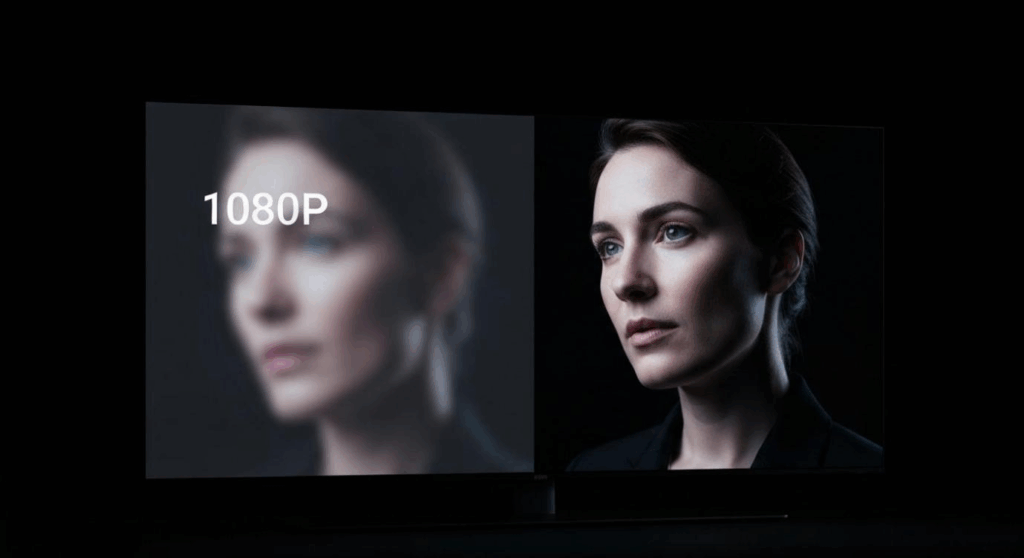
Upscaling tends to come up when older videos start feeling slightly off next to newer uploads. It does not make the footage new, but it helps it blend in. For teams working with existing material, this saves time. Re-recording everything rarely makes sense.
When Upscaling Usually Works Fine
Not every video responds the same way. Clips that were recorded with steady lighting and decent focus tend to upscale cleanly. Talking videos, tutorials, and simple product demonstrations usually fall into this group.
Screen recordings often behave better than expected, especially if the text is large and motion is controlled. Older social videos can also work, provided compression has not been pushed too far.
Problems show up when the footage already struggles. Heavy motion blur, unstable exposure, or aggressive compression leave little room for improvement. Upscaling does not fix those issues. It makes them larger.
That is why enhancement often comes first. Cleaning up noise and restoring balance before increasing resolution avoids making problems more visible.
This is where a video upscaler tied to enhancement tools becomes more useful than basic resizing.
How Vmake Fits Into This Kind of Work
Vmake approaches upscaling as part of a broader preparation process. The platform is not built around fine control or technical tuning. It is built around getting videos ready to publish without spending hours adjusting settings.
When a 1080p clip is uploaded, the system looks at clarity, compression, and motion stability. Enhancement happens automatically, then resolution increases to 4K. The goal is consistency rather than maximum sharpness.
There are no sliders to chase. This works well when handling multiple videos that need similar treatment. It also reduces the risk of pushing footage too far and ending up with unnatural results.
Upscaling a 1080p Gmaing Video to 4K Using Vmake
The process itself stays simple.
- Upload the original 1080p video into the Vmake workspace. Common camera, phone, and social media formats load without extra steps.
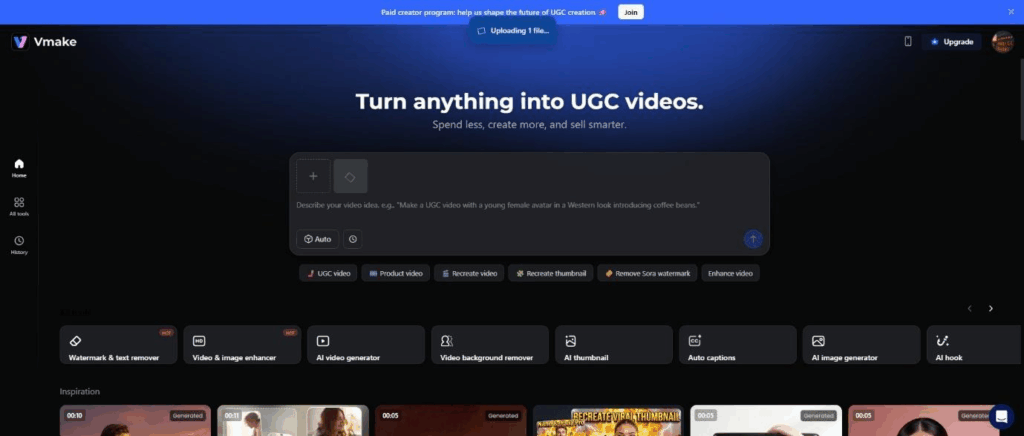
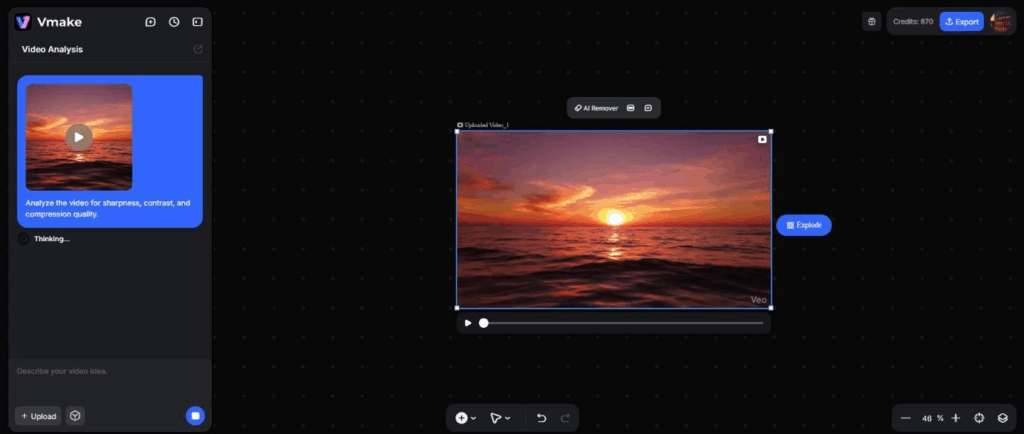
- Allow the system to review the footage. This stage checks sharpness, contrast, and compression before resolution changes happen.
- Enable enhancement so the video is cleaned up before being scaled. This helps prevent blur and noise from standing out more at higher resolution.
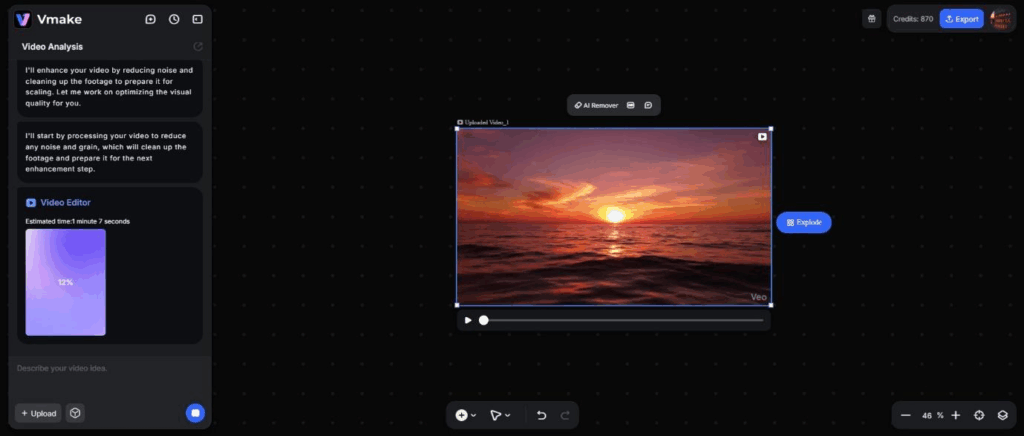
- Select 4K as the output resolution. This tells the system to upscale rather than stretch the existing image.
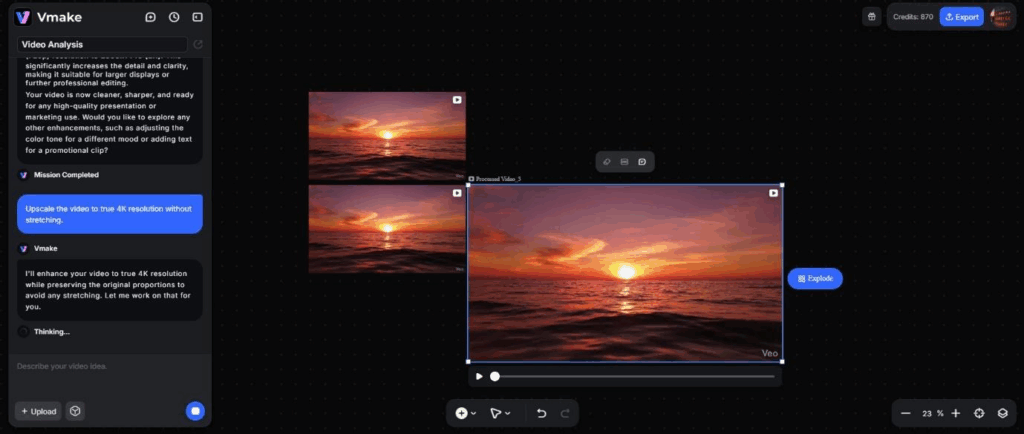
- Review the preview once processing finishes. Edges, text, and motion are usually the first things worth checking.
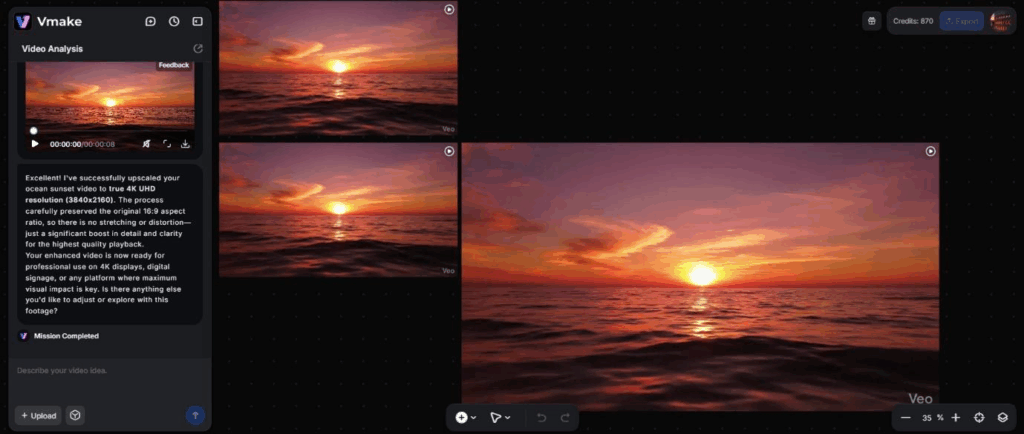
- Export the final file and use it directly for publishing or further edits.
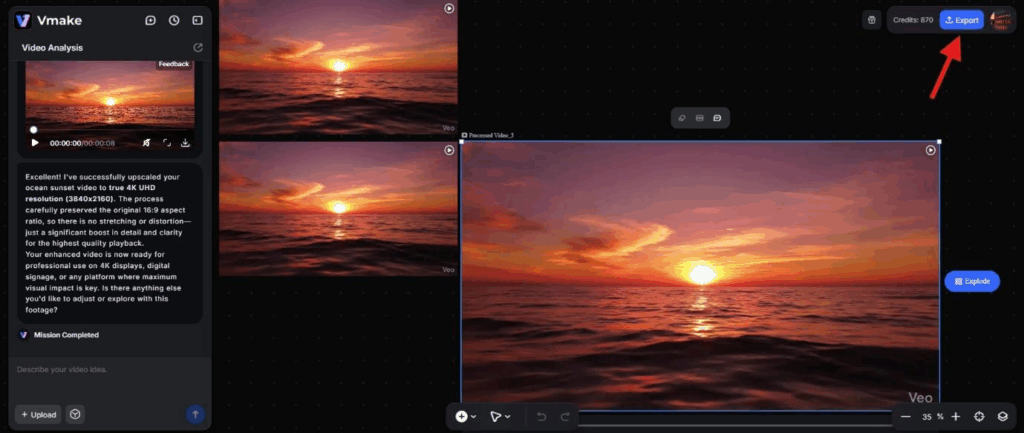
This sequence works the same way for single clips or batches, which is often the main appeal.
What Changes After Upscaling
- The changes are rarely dramatic. That is a good sign.
- Text becomes easier to read. Lines look steadier. Compression damage fades into the background instead of pulling focus.
- Movement stays natural. When upscaling goes wrong, motion is usually the first thing to break. Over-sharpened footage flickers. Balanced processing avoids that.
- The result feels more current, not more detailed.
Upscaling Versus Native 4K Footage
| Area | Native 4K | Upscaled 1080p |
| Detail level | Highest at capture | Limited by source |
| Visual result | Clean at any size | Improved, not perfect |
| Cropping room | Wide flexibility | Moderate flexibility |
| Best suited for | New recordings | Existing footage reuse |
When Upscaling Works Better With Other Fixes
Resolution alone does not solve presentation problems. Vmake includes tools that handle these issues alongside upscaling. Cleaning up a background or removing a watermark before increasing resolution prevents those elements from becoming more obvious.
Keeping everything in one workflow avoids repeated exports and quality loss.
Processing Time and Practical Limits
Upscaling takes more processing than standard exports. Short clips finish quickly. Longer videos take more time, but batch handling remains workable.
Because processing happens in the cloud, hardware limitations on the user’s side do not get in the way. Results stay consistent across devices.
Situations Where Upscaling Makes Sense
- Brands are refreshing older product videos.
- Creators are trying to keep visual consistency without upgrading equipment.
- Agencies maintain large client libraries.
- Educators are updating training material without re-recording sessions.
In each case, the goal is the same. Keep usable footage usable.
Limits Worth Accepting
- Upscaling cannot invent detail. Poor source quality stays poor, just larger.
- Footage with extreme compression or blur may only improve slightly.
Conclusion
This guide solely focuses on how to upscale video from 1080p to a 4K resolution. Vmake treats the process with restraint. Enhancement and upscaling work together without pushing footage too far. The result does not try to impress, but fits. For teams managing older videos rather than starting over, that approach usually makes sense.