AI Promo Videos for No-Code Apps
Building an Android app no longer requires a development team. With a no-code builder, a teacher, a shop owner or a solo founder can go from idea to a working app in an afternoon. Getting people to install it is the harder part.
Store listings, social ads and landing pages all perform better with motion. A few seconds of video can show what an app feels like faster than any paragraph of description. Most no-code creators, though, don’t have a video editor, a motion designer, or the budget to hire one. That’s where AI image-to-video tools have started to fit in.
Where Video Helps an App Get Installed
Think about the moments when someone decides whether to tap “Install”:
- The store listing. Google Play lets developers add a promo video from YouTube alongside the screenshots and feature graphic. The current size and format requirements are listed in Google’s Play Console Help Center.
- Social ads. Short vertical video is the default format on TikTok, Instagram and YouTube Shorts.
- Landing pages. A looping hero clip makes a simple app page look finished.
- Launch posts. Community launches and product directories get more attention with a short clip than with a static image.
None of these need a studio production. They need something clear, honest and moving.
Two Kinds of App Video, and Where AI Fits
I find it useful to separate app video into two jobs.
1. Functional demos
These show the real app in use, and they should always be real. AI models are bad at readable interface text and tend to invent buttons and menus that don’t exist. Faking UI also misleads users and can break store policies. Use your phone’s screen recorder or an emulator for this part.
2. Context and mood
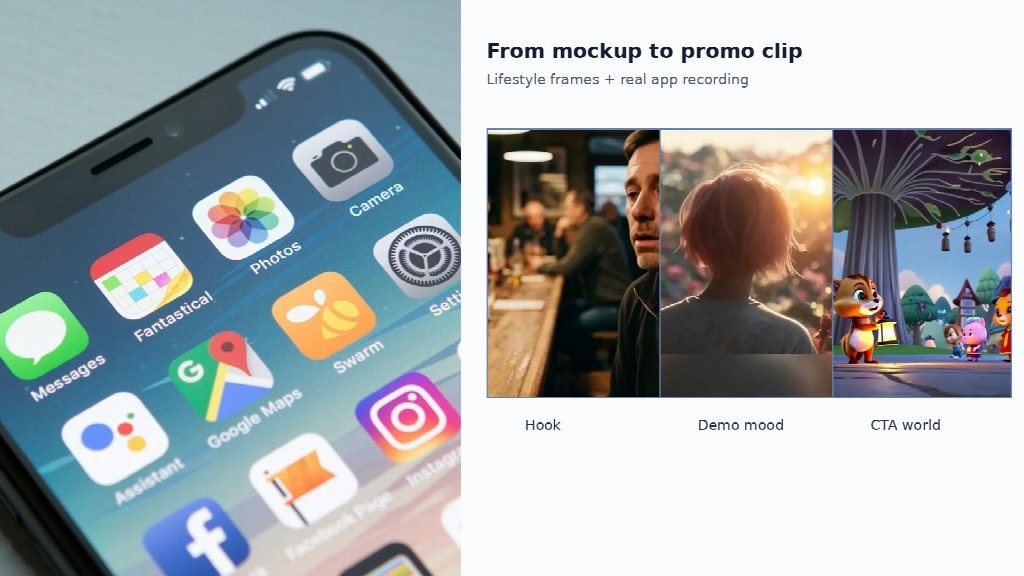
This is the world around the app: a runner checking a fitness tracker at sunrise, a kitchen counter for a recipe app, a classroom desk for a quiz app. Here image-to-video works well. You start from a still you own or have licensed, describe the motion, and the model turns it into a short clip.
The strongest promos combine both. A few seconds of context set up the problem, and a real screen recording shows the solution.
Why Start From an Image Instead of Text
AI video tools usually offer two starting points. Text-to-video invents a scene from a written prompt. Image-to-video animates a frame you supply. For app marketing, starting from an image is usually the safer choice, because the setting, colors and subject stay close to what you picked instead of drifting with every generation. Kuaishou has said that image-generated video made up about 85% of video creation on its Kling AI platform, which suggests many creators reach the same conclusion.
Tools Worth Knowing
- Canva is already the default design tool for many app makers. Its video templates are handy for the final edit and captions.
- Runway offers image-to-video generation and a broader set of editing tools.
- Multi-model workspaces let you test the same still on several AI models. MixVio, for example, runs image-to-video on Seedance, Kling, Veo and MiniMax routes, supports 9:16, 16:9 and 1:1 output, and shows the credit price before each run, with no credits charged for failed generations. That predictability helps when the marketing budget is close to zero.
A 15-Second Promo, Step by Step
Step 1: Pick one message
What does your app do better than anything else? “Log your water intake in one tap” is a message. “An all-in-one wellness platform” isn’t.
Step 2: Collect your assets
You need one or two lifestyle stills, your icon, and two or three clean screenshots. JPEG, PNG and WebP are widely accepted by image-to-video tools.
Step 3: Animate the context shots
Upload each still and write a short, physical motion prompt, for example: “gentle handheld camera, morning light, person lifts phone and smiles.” Generate a few takes and keep the most natural one. Most image-to-video routes produce clips of about 3 to 15 seconds, which is more than enough for an opening hook.
Step 4: Record the real demo
Capture 5 to 8 seconds of the app doing its core job. Tap slowly and deliberately so viewers can follow.
Step 5: Assemble
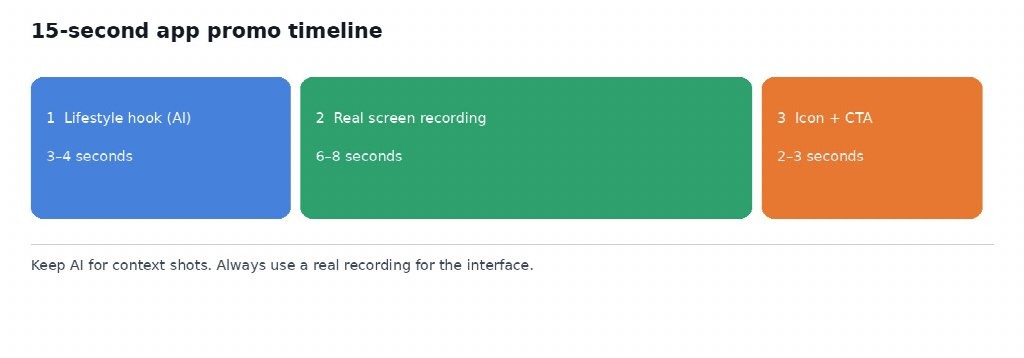
Order the clips as: context hook (3–4 seconds), real demo (6–8 seconds), icon and call to action (2–3 seconds). Add large captions, since most social video autoplays on mute.
Step 6: Export the right formats
Make a horizontal version for your store listing and YouTube, and a vertical one for social ads. Compression, caption size and aspect ratios matter more than most people expect. The AppsGeyser blog has a detailed guide to optimizing App Store and Google Play preview videos that covers these specs.
Mistakes to Avoid
- Faking the interface. Always use real screenshots and recordings for anything that shows the app itself.
- A slow opening. If the message isn’t clear in the first three seconds, people scroll away.
- Ignoring rights. Only animate images you’re allowed to use, and check the tool’s commercial terms. Many tools, including MixVio, limit free-plan outputs to evaluation and reserve commercial use for paid plans.
- No call to action. End with the app name, the icon and where to get it.
Test, Then Keep the Winner
The real advantage of cheap, fast video is that you can test it. Make two or three versions with different opening hooks, run them as small ads or rotate them on your landing page, and keep whichever converts best. A clip that cost very little to make can be replaced next week without regret.
Final Thoughts
No-code builders took coding out of the way of making an app. AI video is starting to take production out of the way of marketing one. Neither replaces judgment: the app still has to solve a real problem, and the promo still has to be honest about what it does. But a solo creator can now ship an app and a decent promo in the same weekend.