AI Outpainting Explained: How Image Expansion Works
Have you ever taken a photograph that looked great but felt too tightly cropped? Perhaps the subject was positioned too close to the edge, the background lacked enough space, or the image simply did not fit the dimensions required for a particular design. These are common challenges in photography and digital content creation.
AI outpainting offers a practical solution. It uses artificial intelligence to extend an existing image beyond its original borders, generating additional visual content that blends with the original scene. Instead of stretching pixels or sacrificing important details through cropping, this technology creates new areas that look like natural extensions of the photograph.
For creators who want to experiment with this approach, tools such as CapCut’s ai expand image free feature provide an accessible way to explore image expansion without relying on complicated manual editing techniques.
Understanding how AI outpainting works, what it can accomplish, and where its limitations lie can help photographers, designers, marketers, and everyday users make better decisions about their visual content.
What Is AI Outpainting?
AI outpainting is an image-editing technique that uses machine learning to generate new visual information outside the boundaries of an existing picture.
Consider a photograph of a person standing in front of a beautiful landscape. The original image might be square, but a website banner requires a wide horizontal composition. Traditional editing would involve cropping, stretching the image, or manually adding a background.
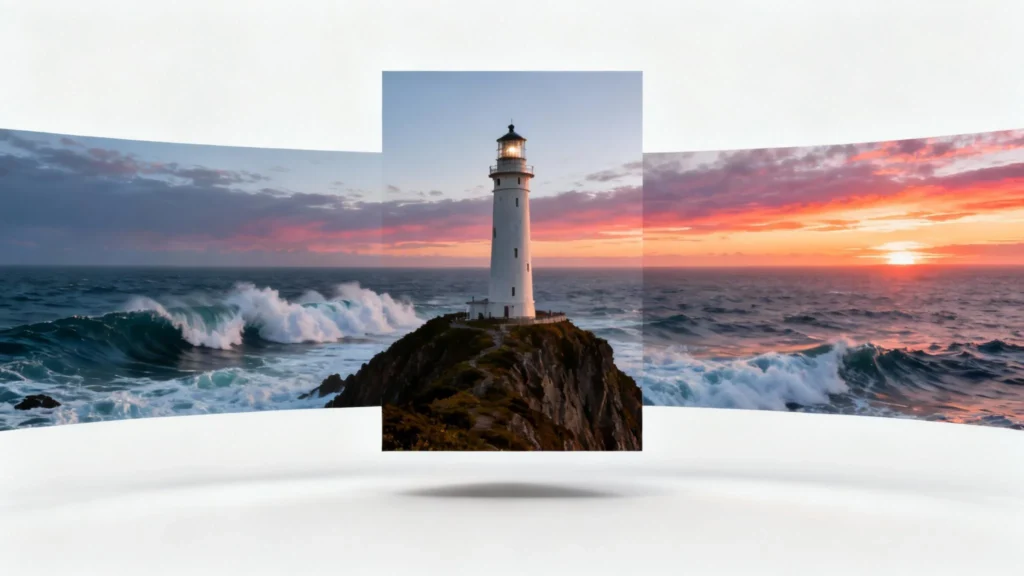
Outpainting takes a different approach. It examines the existing photograph and generates additional scenery around its edges. The result might include more sky, surrounding trees, distant mountains, or other environmental details that complement the original image.
The important distinction is that outpainting does not simply enlarge the existing pixels. It creates new image content based on the visual information already available.
How Does AI Image Expansion Work?
AI outpainting relies on machine learning models trained on large collections of images. Through training, these models learn relationships between objects, textures, colors, lighting conditions, backgrounds, and visual patterns.
When someone uploads a photograph for expansion, the system analyzes its existing content and uses that information to predict what might reasonably appear beyond the original boundaries.
Although different platforms use different technical approaches, the process generally involves several stages.
1. Analyzing the Original Image
The first step involves examining the photograph to understand its visual structure.
The AI model identifies important elements, including:
- Main subjects and surrounding objects.
- Dominant colors and tonal variations.
- Lighting direction and shadow patterns.
- Textures such as grass, water, clouds, and walls.
- Perspective, depth, and spatial relationships.
This analysis gives the model context about the scene.
For example, when processing a beach photograph, the system may recognize the horizon, ocean surface, sand, and sky. These details provide clues about what should appear if the image is extended horizontally.
2. Understanding the Missing Areas
Once the original content has been analyzed, the system considers the additional space that needs to be generated.
The user may request a wider landscape, a taller portrait, or a different aspect ratio. This determines where new content must appear.
The model then uses the visible portions of the photograph to estimate what belongs in those missing areas.
This is not simply a matter of copying nearby pixels. The system attempts to understand the broader visual context so that the generated content remains consistent with the original scene.
3. Generating New Visual Content
The generation stage is where the actual expansion happens.
Modern outpainting systems commonly use generative models, including diffusion-based architectures. These models progressively produce image details based on learned visual patterns and the information provided by the original photograph.
For instance, if the original image contains a forest, the generated area may continue the surrounding trees, foliage, and natural lighting.
The objective is to create a transition that looks convincing rather than like a separate image attached to the original.
4. Blending the Expanded Areas
Generating new content is only part of the process. The new sections must also connect naturally with the existing photograph.
The system attempts to maintain consistency in:
- Brightness and contrast.
- Color temperature.
- Shadows and highlights.
- Texture and visual detail.
- Perspective and depth.
A well-generated expansion should not have an obvious boundary between the original image and the newly created sections.
However, results are not always perfect. Complex patterns, reflective surfaces, and highly detailed objects can sometimes produce noticeable inconsistencies.
What Makes AI Outpainting Different from Traditional Resizing?
Although image expansion and image resizing may sound similar, they solve different problems.
Traditional resizing changes the dimensions of an existing image. Depending on the method, it may stretch pixels, reduce quality, or introduce unwanted distortion.
Outpainting generates additional content beyond the original frame.
| Technique | What It Does | Best Use |
| Cropping | Removes unwanted image areas | Improving composition |
| Resizing | Changes image dimensions | Preparing files for different uses |
| Upscaling | Increases pixel resolution | Improving image size |
| Outpainting | Generates content beyond image borders | Extending backgrounds and changing composition |
For example, imagine a square photograph of a mountain range. Resizing it to a wider format might distort the landscape, while cropping could remove important scenery. Outpainting can generate additional mountains, sky, and surrounding landscape to create a wider composition.
Where Can AI Image Expansion Be Used?
AI outpainting is useful across several creative industries. Its value comes from allowing people to adapt existing photographs instead of creating entirely new images whenever a different layout is required.
Social Media Content
Social media platforms use different image dimensions for posts, stories, covers, and advertisements.
A photograph originally created for a square post might not fit a vertical story. Expanding the background can provide the additional space needed without cutting off the main subject.
Content creators can also use generated space for captions, headlines, and other design elements.
Photography and Digital Art
Photographers sometimes capture beautiful scenes without leaving enough space around the subject.
Outpainting can help address these composition problems. A portrait can receive additional background space, while a landscape photograph can be extended to create a more cinematic appearance.
Digital artists can also experiment with alternative compositions without rebuilding an entire scene manually.
E-commerce and Product Photography
Online stores frequently require product photographs in different formats.
A product image might be suitable for a product listing but unsuitable for a promotional banner. Outpainting can create additional background space around the product, allowing designers to prepare alternative layouts.
However, product accuracy is especially important. AI-generated expansion should not change logos, packaging, labels, or the actual appearance of the item.
Website and Blog Design
Website layouts often require wide banners, background images, and promotional graphics.
A photograph taken in portrait orientation might need to become a horizontal header. Rather than searching for another photograph, designers can use outpainting to extend the existing image.
This can also help maintain visual consistency across different pages.
Marketing and Advertising
Marketing teams regularly adapt visual assets for different campaigns.
An image created for a social media advertisement might later be needed for an email newsletter, landing page, or presentation.
AI expansion makes these adjustments more convenient by creating additional space while preserving the original visual direction.
Recommended Tools for AI Image Expansion
Several AI-powered image editing solutions can help users experiment with outpainting. The right choice depends on the desired output, editing experience, and level of control.
CapCut AI Expand Image
CapCut offers an AI image expansion feature designed to extend photographs and adapt their composition.
Users can upload an existing image, select a suitable aspect ratio, and generate additional visual content around the original photograph. Depending on the available workflow, prompts can also help guide the type of content generated in the expanded areas.
It is worth considering for social media creators, casual photographers, and people who want to prepare images for different layouts without learning advanced image-editing techniques.
Adobe Photoshop Generative Expand
Adobe Photoshop provides Generative Expand as part of its AI-assisted editing capabilities.
It allows users to extend an image beyond its existing canvas and generate content that complements the original photograph. Its integration with a professional editing environment makes it useful for designers who need more control over the final composition.
Stable Diffusion-Based Workflows
Some Stable Diffusion-based image editing workflows support outpainting through specialized interfaces and models.
These options can provide greater flexibility for technically experienced users. Depending on the setup, users may be able to adjust generation parameters, provide prompts, and experiment with different results.
The trade-off is that configuration and workflow management can be more complicated than using a straightforward online editor.
How to Get Better Results from AI Outpainting
Even sophisticated AI tools need appropriate input and guidance. A few practical techniques can make a noticeable difference in the quality of expanded images.
Start with a High-Quality Original
The quality of the source photograph influences the final result.
Images with clear subjects, consistent lighting, and recognizable backgrounds generally provide better context for the AI model.
Blurry or heavily compressed photographs can make it harder for the system to understand textures and visual details.
Choose the Correct Aspect Ratio
Before expanding an image, consider where it will eventually appear.
For example:
- 1:1: Works well for square social media posts.
- 4:5: Useful for portrait-oriented feed content.
- 9:16: Suits vertical stories and short-form video layouts.
- 16:9: Commonly used for website banners and video thumbnails.
Choosing the destination format early helps prevent unnecessary editing.
Use Clear Prompts
If the tool supports text prompts, describe what should appear in the additional space.
Instead of writing something vague such as “make the picture bigger,” provide useful context.
For a landscape photograph, a prompt might say:
“Extend the surrounding mountain scenery naturally, continuing the existing tree line, cloudy sky, lighting, and distant landscape.”
This gives the model a clearer direction and reduces the possibility of introducing unrelated objects.
Keep the Main Subject Protected
The original subject should remain the visual focus.
When expanding a portrait, for example, the generated background should not compete with the person’s face. Similarly, when working with product photography, the original product should remain unchanged.
Always review the generated result to make sure the composition still communicates the intended message.
Review the Edges Carefully
One of the most common problems with outpainting is inconsistent transitions.
Look for repeated patterns, unnatural shadows, distorted objects, and sudden changes in texture.
Zooming into the boundary between the original photograph and the generated content can help reveal issues that might not be visible at normal viewing size.
Common Limitations of AI Outpainting
AI image expansion can be extremely useful, but it is not a replacement for every type of image editing.
- Unpredictable details: AI models sometimes generate objects or background elements that do not make sense in the original scene.
- Complex patterns: Repeated structures, such as windows, brick walls, fences, and architectural details, can be difficult to reproduce accurately.
- Text and logos: Generated areas may contain distorted letters, symbols, or branding elements. These should be checked carefully.
- Physical accuracy: AI-generated scenery may look realistic without being geographically or scientifically accurate.
- Source quality: Poor-quality input images can produce inconsistent results, particularly when the original photograph contains limited visual information.
For professional applications, human review remains important. AI should be treated as an editing assistant rather than an automatic guarantee of photographic accuracy.
Is AI Outpainting Worth Using?
For many creative projects, AI outpainting offers a practical way to solve composition problems and reuse existing visual assets.
It is particularly valuable when an image needs to fit a different aspect ratio, when additional background space is required, or when the original framing feels restrictive.
The technology also reduces the amount of manual work involved in extending ordinary backgrounds. Instead of reconstructing every detail individually, users can allow an AI model to generate a starting point and then refine the result.
However, the best outcomes still depend on choosing appropriate source images, providing clear instructions, and checking the generated details.
As generative image technology continues to develop, outpainting is likely to become an increasingly familiar part of everyday photography, graphic design, and digital content production.
Frequently Asked Questions
1. What Is the Difference Between Outpainting and Inpainting?
Outpainting generates new content outside an image’s existing boundaries. Inpainting fills or replaces selected areas within the original image, such as removing an unwanted object or repairing a damaged section.
2. Can AI Expand an Image Without Stretching It?
Yes. Outpainting generates new visual content around the original photograph rather than simply stretching existing pixels. This allows the image to become wider or taller while retaining its original subject.
3. Does AI Outpainting Reduce Image Quality?
Not necessarily. The original image can retain its existing quality, while newly generated sections may vary in detail and sharpness. Reviewing the final resolution and visual consistency is important.
4. Can Beginners Use AI Image Expansion?
Yes. Many modern image expansion tools offer relatively simple interfaces. Users generally upload a photograph, choose an expansion size or aspect ratio, and generate the additional content.
5. Is AI Outpainting Suitable for Professional Projects?
It can be, particularly for marketing graphics, website imagery, creative photography, and general design work. However, projects involving accurate product details, technical illustrations, or documentary photography require additional verification.