How to Create a PDF App for Android Without Coding
You can create a PDF app for Android without coding by building a mobile-friendly document experience and using AppsGeyser to turn it into an Android app. Prepare your PDF content, organize how readers will find it, customize the app, and test it on a phone before sharing it.
First, decide what your app should do. An app that gives people access to your manuals or guides is different from a tool that converts Word documents or photos into PDFs. This guide focuses on creating an app for reading and accessing PDF content.
What Is a PDF App?
A PDF app gives users a dedicated way to access documents from their Android phones. It might contain a product manual, a professional reference guide, an ebook, or a library of resources organized by topic.
The most useful approach starts with a reader’s task. For example, a customer may need to find the installation guide for a specific product. A searchable document library with clear product names helps more than an unlabeled list of downloads.
PDF Reader App vs. PDF Converter App
| App type | Main purpose | What you need |
|---|---|---|
| PDF reader or document app | Help people find and read existing PDFs | Your documents, a reading experience, and clear navigation |
| PDF converter app | Change files between formats, such as images to PDF | A working conversion engine or service |
Creating an Android app around your content does not automatically add file conversion, OCR, editing, or digital signatures. If you want those tools, build or integrate them into the underlying project and test each one separately.
Choose How to Build Your PDF App
For a website-based approach, start with a mobile-friendly website that already presents your documents. AppsGeyser’s PDF app maker describes how to use web content as the foundation for an Android app.
A website is useful when you want to organize several documents, explain what each one contains, and keep the library current. Build the navigation and reading experience on the website first. Then test how that experience behaves inside the generated app.
If your documents are part of a custom web project, AppsGeyser also supports website URLs and HTML/ZIP projects. The document viewer, search, and other content features still need to exist in that project; importing it does not create those features automatically.
What to Prepare Before You Start
Prepare a small, useful first version rather than uploading every file you have.
- Documents you can distribute. Use your own materials or files you have permission to share.
- Readable PDFs. Check font sizes, page orientation, image quality, and working links on a phone.
- Clear document titles. Use names such as “Model A Installation Guide” instead of “final-v3.pdf.”
- An organized home screen. Group documents by topic, product, or reader task.
- An app name and icon. Choose a name that describes your content and an icon that is recognizable at a small size.
For a website-based library, check that intended users can access the pages and documents. A link that works only in your signed-in browser may fail for other people. Confidential documents need appropriate access controls; a public file URL is not a private delivery method.
How to Create a PDF App for Android: 5 Steps
1. Build Your Document Library
Create a mobile-friendly page or website for your PDFs. Add a short description for each document so readers can choose the right file before opening it.
For example, a product library could offer three sections: setup guides, troubleshooting, and maintenance. Start with a few representative files and check the full reading journey before adding the rest.
Use a working viewer or clearly labeled document links. A raw PDF URL is not necessarily a complete app experience: opening, downloading, and navigation can behave differently across devices.
2. Add Your Website to AppsGeyser
Open the app creation flow and choose the website-based route. Add the URL of your document website, then follow the fields shown in the builder. For a walkthrough of URL setup, APK generation, and device testing, see our website-to-APK guide.
Use the library’s main page as your starting point so readers can navigate between resources. Check the preview, then verify the same journey in the installed app.
3. Customize the App
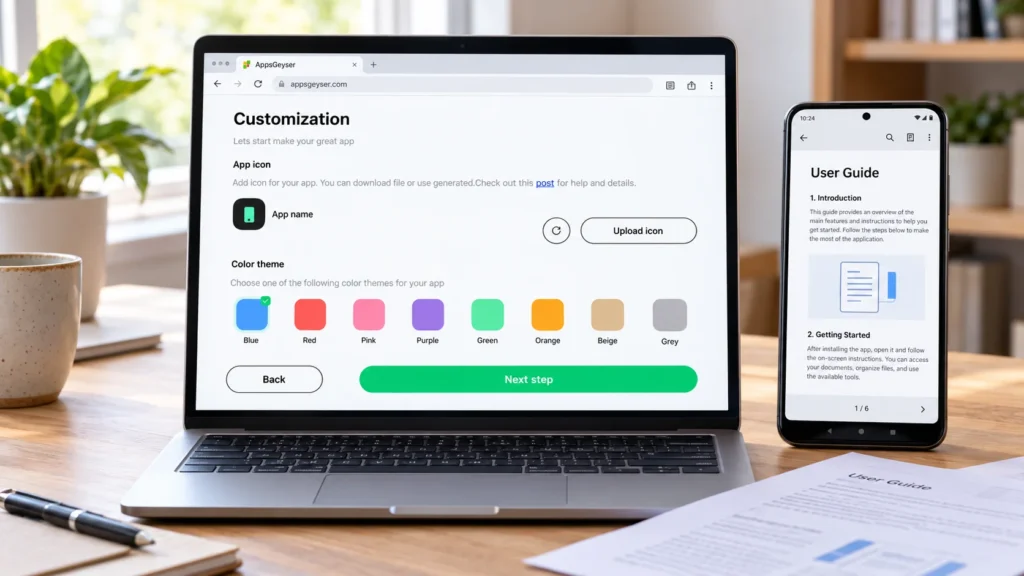
Add a descriptive app name and your icon. Use consistent colors and short navigation labels wherever the selected builder options allow them.
Keep the first screen focused on the documents readers need most. Optional features depend on the app and subscription. For example, AppsGeyser lists push notifications as a Premium feature. Check the current plans before planning your launch around paid options.
4. Generate and Test the Android App
Generate your build and download the APK for device testing. A successful build confirms that the package was created; it does not confirm that every PDF opens correctly.
Check these tasks on an Android phone:
- Open every document from the home screen.
- Confirm whether each file appears inside the app, in a browser, or in an external reader.
- Read a long document and check zoom, scrolling, and page layout.
- Use the Back button and return to the document library.
- Try a large PDF on a slower connection.
- Test downloads and document links, if your experience includes them.
- Turn off the connection and check what remains available.
Do not describe the app as an offline reader unless the installed build actually supports that behavior. Hosted PDFs may require an internet connection.
5. Choose How to Distribute It
You can plan direct Android distribution or a Google Play submission. These are separate steps from creating the app.
For Google Play, prepare an Android App Bundle (AAB), your store listing, screenshots, privacy information, and the declarations required for your app. AppsGeyser’s Google Play publishing guide explains the submission workflow. Complete the testing and verification requirements that apply to your developer account.
Can You Publish a PDF App on Google Play?
Google Play’s Functionality, Content, and User Experience policy lists static PDF apps without app-specific functionality as an example of limited functionality and content.
Plan meaningful mobile functionality before submitting. Depending on your audience, that might mean a searchable resource library, interactive exercises, or tools that help people use the information. These are features to implement and verify, not functions automatically supplied by converting a website into an app.
An icon, extra branding, or notifications alone should not be treated as proof that the app meets the policy. Google reviews the complete experience, and generating an APK or AAB does not guarantee approval.
PDF App Ideas That Start with a Clear Reader Need
- Product documentation: help customers find the correct manual and troubleshooting resources.
- Professional reference library: organize field guides by topic and version.
- Course companion: connect reading materials with exercises or other learning activities you have built.
- Membership resources: give authorized users access to a document library through an existing authenticated website.
For each idea, identify why someone would return to the app. Then build that reason into the experience before spending time on promotion or monetization.
Frequently Asked Questions
Can I create a PDF app without Android Studio?
Yes. AppsGeyser lets you create an Android app from supported web content without using Android Studio. Your underlying website or project must provide the document experience you want users to have.
Is creating a PDF app free?
AppsGeyser offers free app creation and APK download. Optional features and services can cost extra, and store publishing has its own account requirements. Check the plan details for your intended setup.
Can I put several PDFs in one app?
Yes, a website-based library can organize multiple PDFs. Test the navigation, loading times, and file access in the generated app. Do not assume a particular document limit or built-in library feature without checking your setup.
Will my PDFs work offline?
That depends on how the documents and viewer are implemented. A website-based app may need a connection to load its files. Test offline behavior on a device before promising offline access.
Can this app convert Word files or photos to PDF?
Only if your underlying project includes a working conversion tool. An app for reading PDF content does not automatically become a file converter.
Start Building Your PDF App
Choose a small set of useful documents, create a clear reading journey, and test it on Android. Once that experience works, expand your library and prepare your distribution plan.
Create your PDF app with AppsGeyser when your document website is ready.