
How to Create a Free Word Search App for Android (No Code)
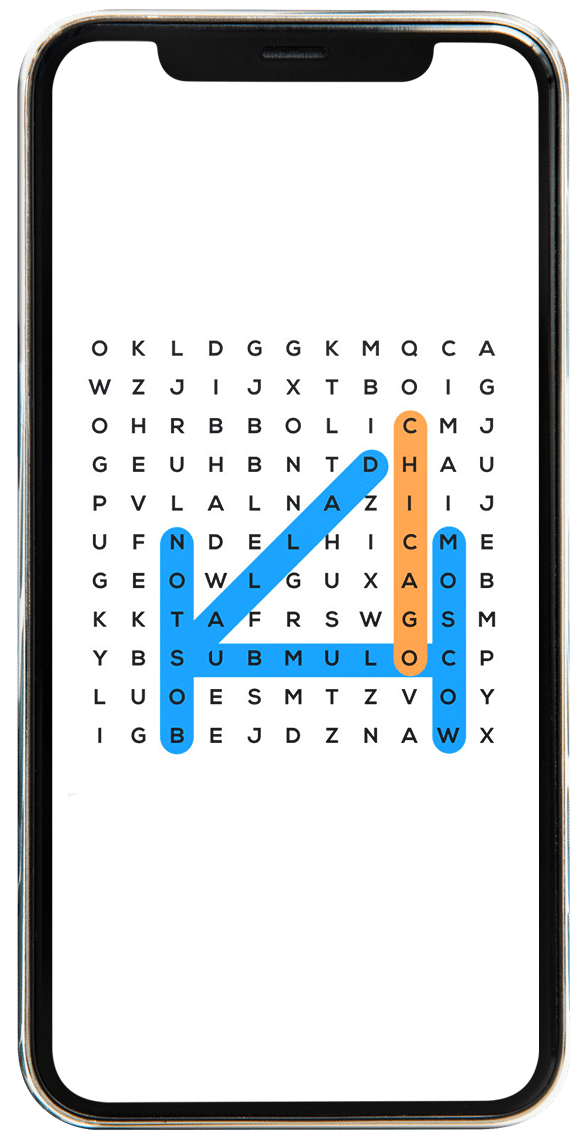
Word search puzzles have been a popular brain game for decades, and they are now more popular than ever, thanks to mobile apps. If you have ever wanted to create your own word search game, there is an easy way to do so using artificial intelligence (AI) and an app builder like AppsGeyser.
This guide will show you how to create a custom word search app with AI to generate the game and use the AppsGeyser app builder to convert it into an Android app. You’ll learn about UX (user experience) and ASO (app store optimization), as well as tips for monetization.
With these tools, you can create an engaging and unique game that challenges your brain and entertains your friends.
Why build a word search app?
Word games are timeless, enjoyable for all ages, and easy to create, making them perfect for your first mobile app.
Creating a word search game is not only fun, but also a great way to earn money, show off your creativity, or promote your brand. Here are some reasons why:
- Educational value: Teachers use word search builders to create educational apps for vocabulary learning in multiple languages.
- Entertainment: Casual gamers love playing quick puzzle games on the go.
- Monetization: Free games can be monetized with ads for passive income.
- Customization: You can customize themes (animals, foods, countries) and create your own unlimited word search game.
The best part is that you don’t need to write code from scratch – an AI can generate a single-file HTML/JavaScript game that you can paste into AppsGeyser to create a free word search APK – fast.
With this digital approach, you’re not just creating a printable puzzle – you’re developing an interactive word search game that will work on any Android device.
- Teachers can create vocabulary sets for their classrooms;
- Parents can make bilingual puzzles for their children;
- Indie developers can create a find-a-word game app to teach the basics of publishing and monetization on Google Play.
Step 1: Generate a Word Search Game with AI
To create game logic, we’ll use an AI code generator. Here is an example of a prompt to create a fully functional word search puzzle in a single HTML file.
Example Prompt for AI:
Copy and Paste the prompt:
Generate an interactive Word Search Puzzle Game as a single HTML file with embedded CSS and JavaScript.
Core requirements
- Use only plain ES6+ JavaScript, HTML and CSS (no external libraries, no frameworks, no CDNs).
- All code must be in one HTML file.
- The layout must be responsive and mobile-friendly. Grid cells must keep a 1:1 aspect ratio and resize to fit the screen while keeping letters readable on phones and desktops.
Themes & languages
- The game must support selectable themes (at least: Cars, Countries, Food, Animals).
- The game must support selectable languages: English, Spanish, French.
- There must be drop-down selectors for theme and language.
- When the theme or language changes, the grid and word list are regenerated for the new combination.
Data configuration (very important!)
At the top of the script, define:
- An array of available languages.
- An array of available themes.
- A single configuration object that maps [theme][language] → word list.
- A translation object that maps [language] → all UI texts (button labels, headings, status messages, “you win” text, restart text, result texts, etc.).
All configurable data (themes, languages, word lists, UI strings) must be stored in these objects/arrays so a non-developer can easily edit them.
Do not hard-code interface text in HTML; read all labels and messages from the translation object.Grid & word placement
- Use a fixed grid size of 10×10 (10 rows, 10 columns).
- Implement a word placement algorithm that supports horizontal, vertical and diagonal words, forwards and backwards.
- Words may intersect and share letters, but letters in a cell must always match.
- The generator must guarantee that every word in the active word list is actually placed in the grid. If placement fails, retry until all words are placed.
- Fill all remaining empty cells with random uppercase letters A–Z.
Word selection
- Users must be able to select words using mouse and touch.
- Interaction: click/tap on the first cell and then on the last cell of the word. Highlight all intermediate cells while selecting.
- If the selected line exactly matches any word (forward or backward), mark that word as found:
- Highlight all its cells with a “found” style.
- Mark the word as found in the word list on the side.
- If the selection does not match any word, clear the temporary highlight.
Timer
- Display a visible timer in MM:SS format.
- The timer must start on the first valid move (first cell selection) and stop when all words are found or when the puzzle is revealed.
- The timer must reset to 00:00 whenever the theme or language is changed (new game).
Hint button
- Add a “Hint” button.
- When clicked, pick a random not yet found word and visually highlight only the first letter cell of that word for about 2 seconds using a special hint style.
- Do not mark the word as found when showing a hint.
- If there are no remaining words to hint (all found), show a short status message (from translations) such as “No hints available.”
Reveal button
- Add a “Reveal” button.
- When clicked, highlight all cells belonging to all words with a “solved” style, mark all words as found in the word list, and stop the timer.
- After Reveal, further selections should not change the solved state.
Restart button
- Add a “Restart” button.
- When clicked, it must:
- Regenerate a completely new puzzle for the current theme and language (fresh grid and word placement).
- Reset the timer to 00:00.
- Clear all found-word states, selections, highlights and status messages.
- Allow the player to start the game again from scratch without changing theme or language.
The “Restart” button label and any related messages must come from the translation object.
Game result
When the game is finished (all words are found) or when the puzzle is revealed:
- Display a visible result message using the current language (from the translation object).
- The result message must at least show:
- A “you win” or “puzzle revealed” text.
- The final time in MM:SS.
- Optionally, the number of words found out of the total (e.g., “5/5 words found”).
The result must be clearly distinguishable from normal status messages (e.g., different styling or placement).
Result-related texts must be configurable via the translation object.Word list & UI
- Display the current word list next to the grid.
- Visually distinguish found words (e.g. different background color, checkmark icon).
- All interface elements and messages (titles, labels, buttons, status texts, result messages) must be shown in the currently selected language using the translation object.
- Use a fun, colorful, high-contrast design appropriate for kids and adults, with a large, readable font.
Code quality
- Organize the JavaScript into small, named functions like generateGrid, renderGrid, renderWordList, startTimer, checkSelection, showHint, revealAll, restartGame, etc.
- Add clear comments above the configuration objects and key functions explaining how to change themes, add new words, add a new language, or adjust UI texts.
Output only the complete HTML code (no explanations, no markdown).
Step 2: Preview and Test the Game
Once the AI has provided the HTML file with features such as theme switching, hints, and word reveals, and all works smoothly, you can package it into a mobile app.
Step 3: Convert the Word Search Game into an APK (free)
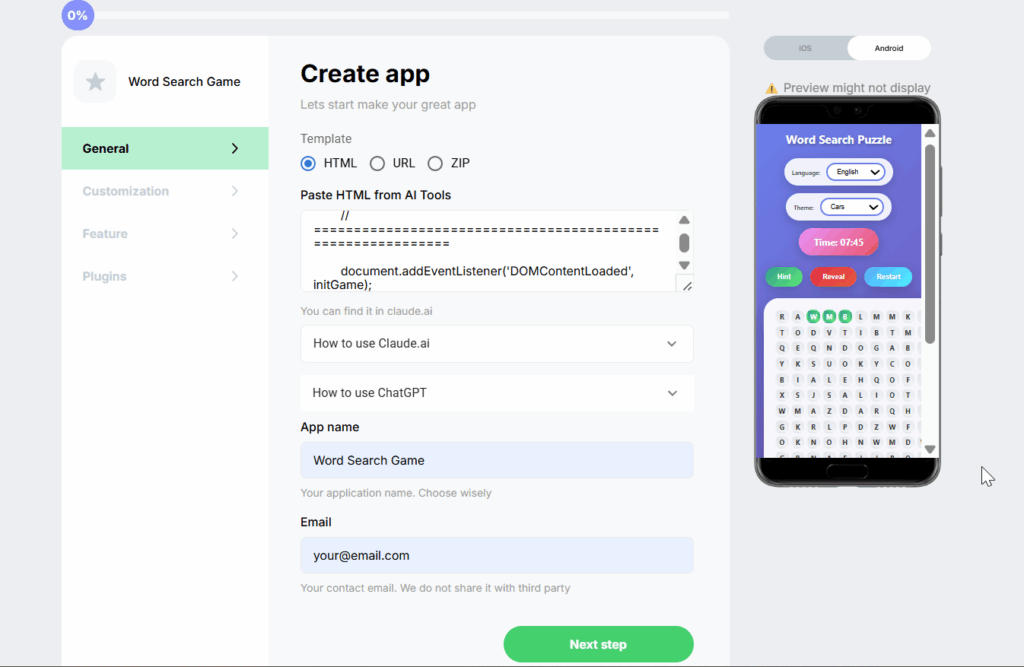
Now package your game with AppsGeyser’s HTML App workflow:
- Go to AppsGeyser and choose Create App → HTML App.
- Paste your entire HTML (from <!DOCTYPE html> to </html>) into the editor.
- Enter an App Name (include a keyword like “Word Search” or “Find-A-Word”).
- Add an App Icon (bright, legible, simple).
- Click Create App and follow the steps to Build APK.
- Download the APK and install it on your Android device for a real-world test.
- If you spot issues, update your HTML and rebuild in AppsGeyser (no Android Studio needed).
This is the quickest and easiest way to create a free word search game for Android. Simply create your own custom word search application using a single HTML file, and then export an APK file in just a few minutes. After you have the APK file, you can install it on your device and share it with friends. When ready, you can publish the game on Google Play and share it with the world.
AppsGeyser is a quick way to package web content into a native build without touching Android Studio.
The flow is: Prompt → HTML → AppsGeyser → APK → Publish.
Before submitting your app to Google Play, please ensure that you have completed the following steps:
- Choose a unique package name and title that includes a term related to word search, such as “Word Search,” “Word Finder,” or “Find-A-Word.”
- Make sure your privacy policy URL accurately reflects the behavior of your app.
- Complete the content rating questionnaire accurately.
- Provide clear and concise screenshots and a short promotional description. Create high-quality store images (3-5 screens) that showcase the main features of your app, including themes, language switching, timer, and hints/reveals.
- Ensure that your app icon is readable at all sizes.
- Test your app on multiple devices to ensure it works smoothly and without crashes, freezes, or blank screens when changing themes or languages.
- Localize your store listing to match the languages available in your app.
Once your app is live, be responsive to user reviews and promptly address any issues. Small improvements in performance and readability can significantly impact your app’s ranking.
Benefits of Using AppsGeyser for Word Search Games:
- Free to Start: No initial costs to create your game.
- Easy to Use: Work with the AI and no-code app builder.
- Monetization Options: Earn money through ads in your game.
- Global Reach: Publish your game on the popular app stores and reach millions of players.
- Branding Advantage: Customize your game with your own logo and branding.
FAQs
Can I really create a word search app without writing code?
Yes – AI generates a single HTML file. You only copy/paste it into AppsGeyser to create a free word search APK.
Will a word search app function offline?
Yes, because everything is in one HTML file. It runs in a WebView inside the APK.
How long does it take for Google Play to review an app?
It varies, but it’s better to prepare a clean listing and have the content rated in order to avoid delays.
Can I make my own word search game for free?
Yes. By using AI code generation and AppsGeyser’s free app builder, you can create, customize, and build your word search app at no cost.
Can I monetize my word search app?
Yes. AppsGeyser integrates ads into your app so you can generate passive income.
What devices can run the game?
Your word search app will run on any Android device and can be published on Google Play for global reach. If you also need an iOS version, you can order an additional iOS conversion on our AppsGeyser website.
Conclusion
You have just learned how to create your own custom word search game using AI-generated prompts and AppsGeyser. This process includes customizing the theme, packaging the HTML, and publishing the Android APK.
With a free word search generator and AI-powered code, anyone can create a word search puzzle for Android and iOs. AppsGeyser helps with instant conversion and publication, without coding, fees, or limits.
To make your game better, focus on creating thematic content around puzzle topics, gathering user reviews, and updating your app regularly.
Take a Look at Our Others App Builders
- Create a Mobile Game App for FREE – Free Game Creator
- Make 15 Puzzle for Free – Create 15 Game App for Android
- Make Case Simulator App for Android – Create Case Opener Game
- Make Free Slot Machine App for Android – Create Casino Mobile Game
- Create 2048 Game App for Android – Make Your Own 2048 Mobile Game
- Create Fishing Game App for Android – Make Free Fish Catching Game
- Create Coloring Book App for Free – Make Android Paint App
- Make Magic 8 App for Android – Free Magic Ball App Maker
- Make Spin The Bottle Game App for Android – Truth or Dare Free App Maker