
How Video Compression Works: Codecs, Bitrate and File Size
Video has become one of the most common ways people communicate, share information, and entertain audiences online. From gameplay recordings and screen tutorials to short social media clips and video calls, digital video is constantly being uploaded, downloaded, and streamed across different platforms. However, video files can become surprisingly large, especially when they contain high-resolution footage, fast-moving scenes, or long recordings.
This creates a practical challenge: how can a video retain good visual quality while taking up less storage space and requiring less bandwidth?
The answer lies in video compression. Although the process may seem complicated, understanding a few essential concepts, including codecs, bitrate, resolution, and file size, makes it much easier to choose suitable export settings. These concepts also explain why two videos of identical length can have completely different file sizes.
What Is Video Compression?
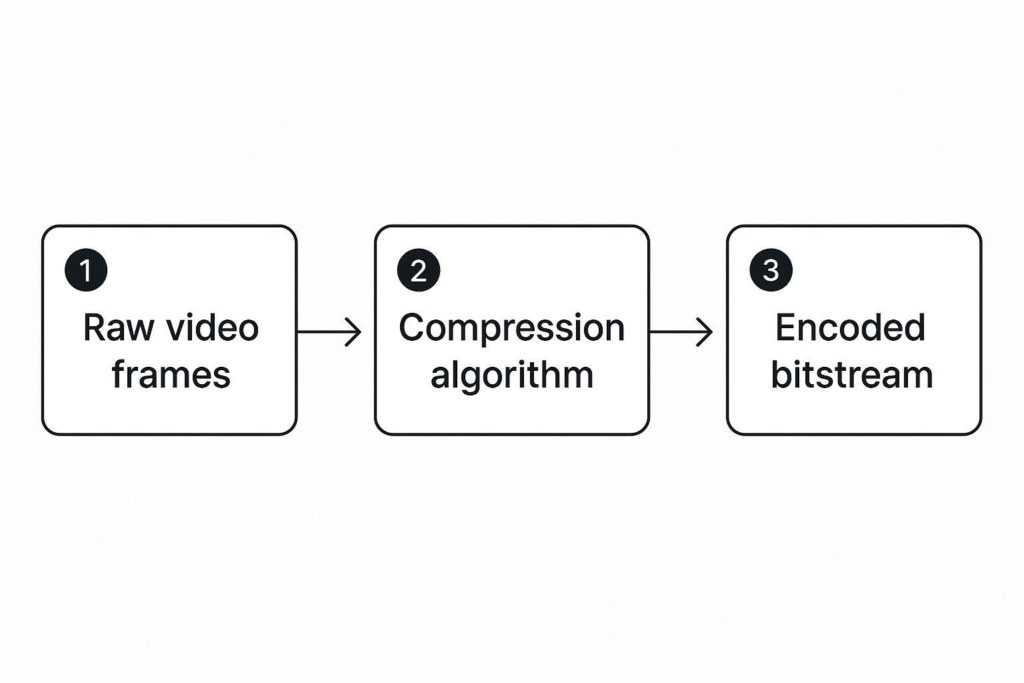
Video compression is the process of reducing the amount of data required to store or transmit a video. A digital video consists of a sequence of individual frames, with each frame containing information about color, brightness, and image details. When these frames are combined at a particular frame rate, they create the moving images viewers see on their screens.
Storing every frame without compression would require a substantial amount of data. For example, a high-resolution recording containing thousands of frames could quickly occupy several gigabytes of storage.
Compression makes video files more manageable by identifying information that can be represented more efficiently. Instead of storing every detail independently, compression algorithms look for patterns, similarities between frames, and visual information that can be reduced without creating a noticeable difference for most viewers.
The goal is to find a reasonable balance between file size and visual quality. Stronger compression generally produces smaller files, but excessive compression can introduce visible artifacts, blurry details, and unnatural movement.
This is particularly important when preparing recordings for online communities. Someone sharing gameplay footage, for example, may need to reduce the size of a recording without making fast-moving action difficult to follow. Tools such as this video compressor for discord can be considered when preparing clips for sharing, especially when upload restrictions make file size an important consideration.
Understanding Video Codecs
A codec is one of the most important components of video compression. The term combines the words encoder and decoder. An encoder compresses video data, while a decoder reconstructs the video so that it can be played.
Different codecs use different methods to reduce data. Some prioritize compatibility with a wide range of devices, while others focus on achieving smaller files at comparable visual quality.
Several codecs are commonly used in modern video production.
H.264 (AVC)
H.264, also known as Advanced Video Coding (AVC), is one of the most widely supported video codecs. It is frequently used for online videos, screen recordings, video conferencing, and general-purpose media files.
Its popularity comes from its balance of compression efficiency and compatibility. Most modern computers, smartphones, browsers, and media players can handle H.264 without requiring unusual software or hardware.
For everyday video sharing, H.264 is often a practical starting point. It provides reasonable quality at manageable bitrates and works well when a file needs to be played across different devices.
H.265 (HEVC)
H.265, commonly called High Efficiency Video Coding (HEVC), was developed to improve compression efficiency compared with H.264.
It can deliver similar visual quality at a lower bitrate in many situations. This makes it particularly useful for high-resolution content, including 4K recordings, where uncompressed or inefficiently compressed footage would consume considerable storage.
However, HEVC has some compatibility and licensing considerations. Older devices may not support it properly, and playback or editing performance can depend on available hardware acceleration.
AV1
AV1 is a newer video codec designed to provide efficient compression for internet-based video delivery. It can achieve substantial bitrate savings compared with older formats while maintaining competitive visual quality.
It is increasingly relevant to streaming services, web-based video applications, and modern media workflows.
Its main consideration is encoding complexity. Depending on the hardware and software being used, creating an AV1 video can require more processing time than encoding an equivalent H.264 file.
Why Codec Selection Matters
The codec affects much more than the extension displayed at the end of a video filename. It influences compression efficiency, playback compatibility, processing requirements, and the amount of data needed to maintain a particular level of quality.
A smaller file does not automatically mean a better compression result. A codec that produces excellent results on one device may not be suitable for an older computer or a platform with limited format support.
For general sharing, compatibility should be considered alongside compression efficiency.
What Is Bitrate and Why Does It Matter?
Bitrate describes how much data a video uses per second. It is commonly measured in kilobits per second (Kbps) or megabits per second (Mbps).
It is one of the strongest factors influencing video file size and visual quality.
A higher bitrate allows more data to represent each second of footage. This can preserve fine details, reduce compression artifacts, and improve the appearance of complex scenes.
A lower bitrate uses less data, resulting in smaller files. However, if the bitrate becomes too low for the video’s resolution and complexity, visual quality can deteriorate.
Consider two recordings with the same resolution and duration. If one is encoded at 8 Mbps and the other at 3 Mbps, the first will generally produce a larger file because it uses more data every second.
However, bitrate requirements also depend on what the video contains.
A static presentation with minimal movement may look acceptable at a relatively low bitrate. A fast-paced gameplay recording containing explosions, camera movement, and changing backgrounds may require considerably more data to preserve comparable visual detail.
Constant Bitrate (CBR)
Constant Bitrate encoding attempts to maintain a relatively consistent bitrate throughout the video.
This approach can make bandwidth planning more predictable because the encoder uses a controlled data rate.
CBR is useful in situations where stable transmission is important, including certain live-streaming workflows and broadcasting environments.
Its limitation is that not every scene requires the same amount of information. A simple scene may receive more data than necessary, while a complicated scene may not receive enough.
Variable Bitrate (VBR)
Variable Bitrate encoding adjusts data usage according to the complexity of the footage.
A relatively simple scene can use fewer bits, while detailed or fast-moving scenes receive more data.
This approach can produce a better balance between quality and file size than applying the same bitrate to every second of a video.
For prerecorded content, VBR is often a useful option because it allows the encoder to allocate data more intelligently across the entire recording.
How Resolution Affects Video File Size
Resolution refers to the number of pixels used to display a video image. It is usually represented by its horizontal and vertical pixel dimensions.
Common video resolutions include:
- 720p: 1280 × 720 pixels
- 1080p: 1920 × 1080 pixels
- 1440p: 2560 × 1440 pixels
- 2160p (4K): 3840 × 2160 pixels
Higher resolutions contain more pixels, which means they can preserve finer visual details. However, they can also require more data during encoding.
For instance, a 4K recording contains four times as many pixels as a 1080p recording. Maintaining similar visual quality may therefore require a higher bitrate, although the exact difference depends on the codec, content, and encoding settings.
Resolution should be selected according to the viewing experience rather than automatically choosing the highest available option.
A short gameplay clip intended for mobile viewing may not benefit significantly from being exported in 4K. Reducing the resolution to 1080p could make the file considerably smaller while preserving enough detail for its intended audience.
Understanding Frame Rate and Its Effect on Compression
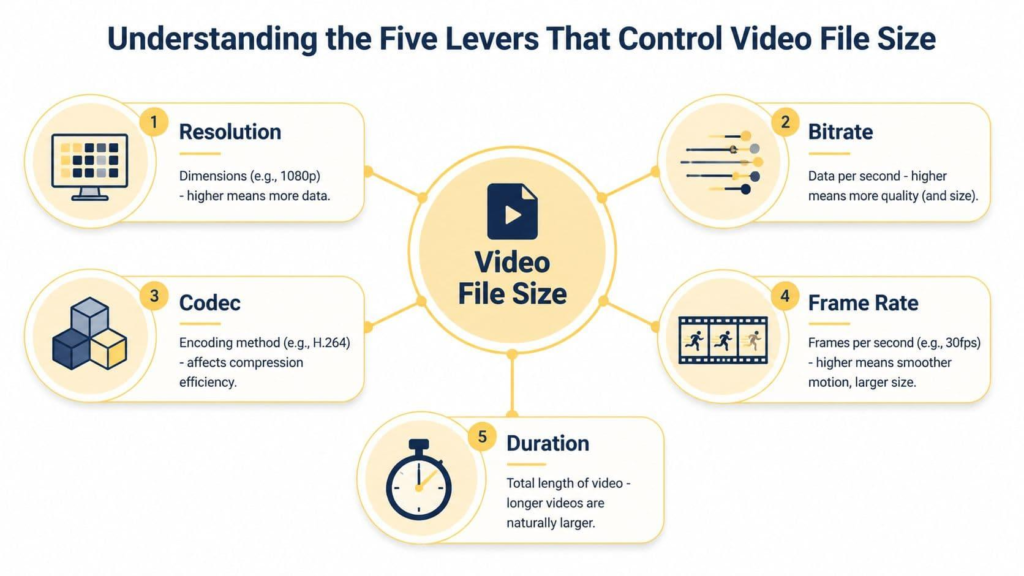
Frame rate describes how many individual frames appear every second. It is expressed in frames per second (FPS).
Common frame rates include 24 FPS, 30 FPS, and 60 FPS.
A higher frame rate can create smoother movement, especially in sports footage, gameplay recordings, and fast camera movements. However, it also increases the number of frames that need to be processed.
For example, a 60 FPS recording contains twice as many frames per second as a 30 FPS recording of the same duration.
This does not necessarily mean the file will be exactly twice as large, because compression techniques can identify similarities between consecutive frames. Nevertheless, higher frame rates generally increase the amount of information an encoder must manage.
When reducing video size, consider whether the original frame rate is necessary.
A talking-head tutorial may work perfectly well at 30 FPS, while a fast-paced gaming highlight may benefit from retaining 60 FPS.
Reducing frame rate unnecessarily can make motion appear less natural, so it is important to consider the type of content before changing this setting.
How Video Compression Actually Reduces Data
Modern video compression relies on several techniques to avoid storing unnecessary information.
Intra-Frame Compression
Intra-frame compression works within individual video frames.
Rather than treating every pixel independently, an encoder identifies patterns and similarities within an image. It can then represent certain information more efficiently.
This is similar to how image compression works. Areas with similar colors or repeated visual patterns can often be encoded without storing every pixel separately.
Inter-Frame Compression
Inter-frame compression analyzes differences between multiple frames.
Most consecutive frames in a typical video contain considerable visual overlap. For example, when a person speaks in front of a stationary background, only certain parts of the image change significantly between frames.
Instead of storing an entirely new image for every frame, the encoder can use previously reconstructed frames as references and record the changes.
This significantly reduces the amount of data needed.
Motion Estimation and Compensation
Motion estimation helps identify how objects or image regions move between frames.
The encoder attempts to describe movement using motion information rather than repeatedly storing the same visual content.
Motion compensation then uses this information during reconstruction.
These techniques are particularly useful for scenes containing predictable movement, although complicated action can make accurate estimation more difficult.
Quantization
Quantization reduces the precision of certain image information.
It is one of the main ways lossy video compression achieves smaller files. By removing information that may be less noticeable to viewers, the encoder reduces the amount of data required.
However, aggressive quantization can produce visible problems, including blockiness, banding, blurred textures, and loss of fine details.
This explains why an excessively compressed video may look poor even when its resolution remains unchanged.
How to Estimate Video File Size
Understanding the relationship between bitrate and duration makes it easier to estimate the final size of a compressed video.
A useful approximation is:
File Size (MB) = Bitrate (Mbps) × Duration (seconds) ÷ 8
This calculation provides an estimate of video data size. Audio and container overhead should also be considered when calculating the final exported file.
For example, imagine a video that is five minutes long and encoded at 4 Mbps.
Five minutes equals 300 seconds.
Using the formula:
4 × 300 ÷ 8 = 150 MB
The video stream would therefore occupy approximately 150 MB before accounting for audio and other file information.
If the same video were encoded at 2 Mbps, its estimated video data size would fall to approximately 75 MB.
This demonstrates why lowering bitrate can be an effective way to reduce file size.
However, bitrate should not be reduced blindly. The final result needs to be checked for visual clarity, especially in areas containing small text, detailed textures, or rapid movement.
Lossy vs. Lossless Video Compression
Video compression methods can generally be divided into two categories: lossy and lossless.
Lossy Compression
Lossy compression reduces file size by permanently discarding some information.
Most commonly shared online videos use lossy compression because it provides substantial size reductions while retaining acceptable visual quality.
The amount of information removed depends on the encoding settings and compression method.
When applied carefully, the differences may be difficult to notice. However, repeatedly compressing an already compressed video can gradually reduce quality.
Lossless Compression
Lossless compression reduces data without permanently removing the original information.
The decoded video can be reconstructed exactly as it was before compression.
This approach is useful for archival workflows, professional editing, and situations where preserving every detail is essential.
However, lossless video files are usually much larger than their lossy counterparts.
For ordinary online sharing, lossy compression is generally more practical.
Choosing the Right Compression Settings for Different Uses
There is no single combination of settings that works perfectly for every video.
The best approach depends on the content, intended platform, upload requirements, and viewing devices.
For gameplay recordings, retaining sufficient bitrate and frame rate is important because fast movement and changing backgrounds can expose compression artifacts.
For tutorials and screen recordings, readable text and interface details should receive priority. Reducing resolution too aggressively may make instructions difficult to follow.
For casual social clips, a moderate resolution and bitrate may be sufficient, particularly when most viewers watch on mobile devices.
For longer educational videos, efficient codecs and variable bitrate encoding can help control file size without unnecessarily sacrificing clarity.
It is also useful to check the actual file-size limit before exporting. Platform requirements can vary according to account type, upload method, and other conditions. Leaving a small safety margin is better than targeting the exact maximum.
Practical Tips for Compressing Videos Without Losing Too Much Quality
A few simple practices can improve compression results:
- Start with the original recording. Compressing an already compressed file can introduce additional quality loss. Whenever possible, work from the highest-quality source available.
- Choose an appropriate resolution. Do not export at 4K if the intended audience only needs a smaller 1080p video.
- Adjust bitrate gradually. Make small changes and compare the results rather than immediately selecting an extremely low bitrate.
- Use an efficient codec. H.264 is a reliable general-purpose choice, while newer codecs may offer better compression when compatibility allows.
- Remove unnecessary footage. Trimming unused introductions, pauses, and repetitive sections can reduce file size without affecting the quality of the remaining footage.
- Check audio settings. Audio contributes to the total file size. Using an appropriate audio bitrate can help reduce unnecessary data while keeping speech understandable.
- Preview the exported file. Check movement, text, edges, color gradients, and sound before sharing the video.
- Keep a copy of the original. Retaining the source file allows you to create another export if the compressed version does not meet your expectations.
Final Thoughts
Video compression is a balance between technical efficiency and viewing quality. Codecs determine how video information is encoded and decoded, bitrate controls how much data is allocated per second, and resolution and frame rate influence the amount of information that needs to be processed.
Understanding these relationships makes it easier to produce smaller files without unnecessarily sacrificing important details.
Whether someone is preparing gameplay highlights, educational recordings, or everyday social videos, the best compression settings depend on the content and its intended purpose. By experimenting with codecs, adjusting bitrate carefully, and reviewing exported footage, users can develop a reliable workflow that makes video sharing faster and more convenient.